How to Use MyFXBook and FX Blue Like a Pro
How to use MyFXBook and FX Blue: exact MT4/MT5 click path, Publisher EA setup, verified track record steps, metric benchmarks and prop firm drawdown reconciliation.
By Marcel Hambálek · Senior Trader, For Traders
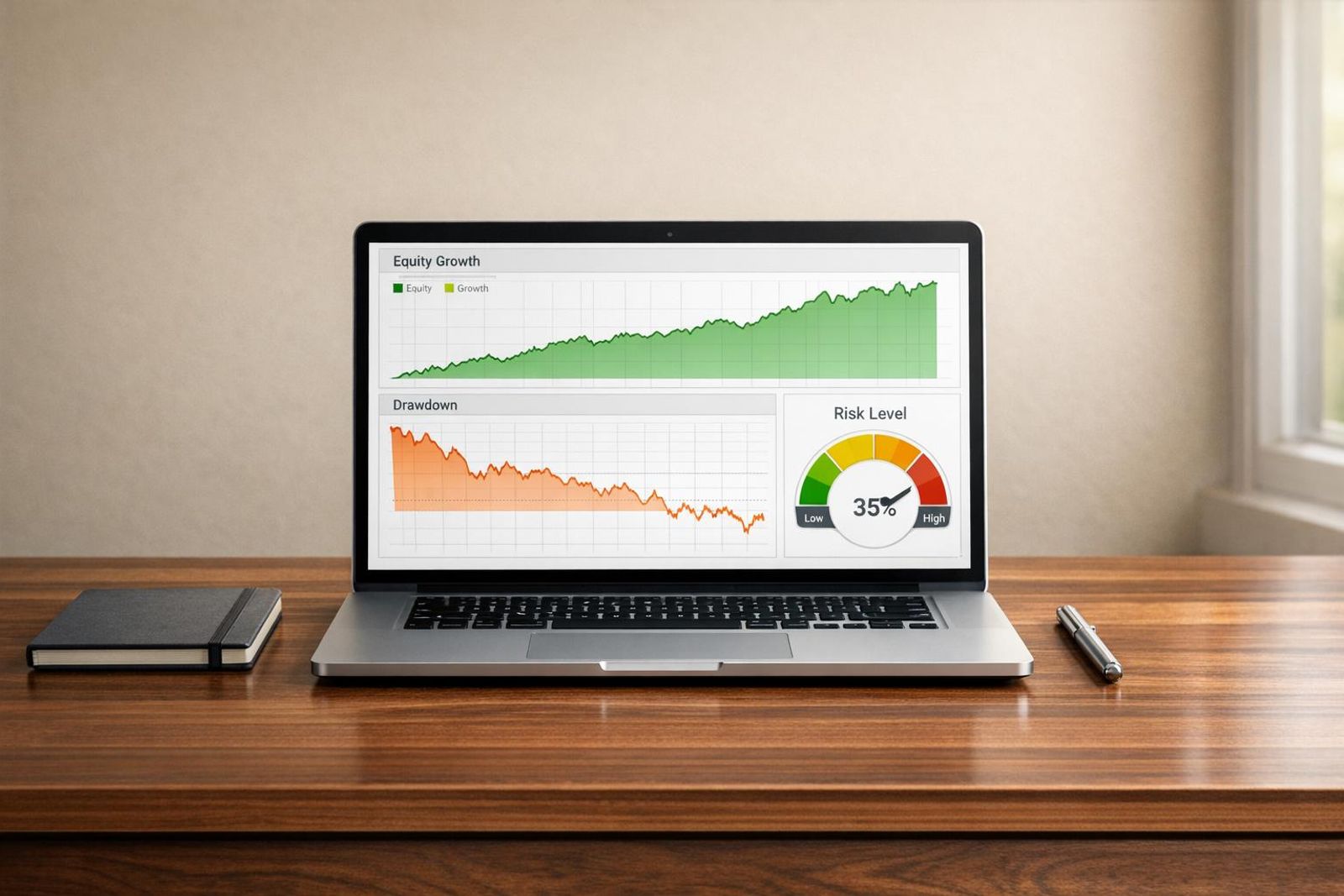
MyFXBook and FX Blue are both free third-party trading analytics platforms that connect to a MetaTrader 4 or MetaTrader 5 account with a read-only investor password and turn your trade history into an equity curve, drawdown chart and performance statistics. MyFXBook connects via auto-update and can issue a verified track record badge; FX Blue Live connects via a Publisher EA installed on a chart and adds MAE/MFE analytics plus a trading simulator.
Key takeaways
- Both MyFXBook and FX Blue are free, and both should only ever be connected with the investor (read-only) password — never your master password.
- MyFXBook's auto-update connection is what produces a verified track record; a screenshot of a profit number proves nothing to a prop firm or an audience.
- FX Blue Live's Publisher EA and its MAE/MFE analytics are the fastest way to find stops that are too wide and targets you're cutting too early.
- Your prop firm dashboard — not MyFXBook — is the only number that can breach you, because firms measure equity-based and often trailing drawdown on a different clock.
- Benchmark bands to aim for: profit factor above 1.5, recovery factor above 3.0, average profit-to-loss ratio of at least 1:2.
- A 15-minute weekly review of the equity curve, R:R and per-instrument stats turns a pile of ratios into three decisions you can actually execute.
Watch: related video
What MyFXBook and FX Blue Actually Are (and What fxblue.com Is)
MyFXBook is a social trading analytics network that verifies your track record; fxblue.com is a suite of free account-tracking and analysis tools built for MT4/MT5 traders. Neither one executes trades or holds your funds — they read your trade history and turn it into charts and stats you can actually use.
MyFXBook in one paragraph
MyFXBook connects to your MT4 or MT5 account with a read-only investor password, auto-updates your equity curve, drawdown, and win-rate stats, and — because it's a public network — can issue a verified track record badge if you choose to make your account visible. That verification layer is the whole point for a lot of traders: it's a way to prove your numbers to a funding evaluator, a signal-service audience, or just yourself, without anyone having to take your word for it.
fxblue.com: Live, Apps and the trading simulator
fxblue.com splits into three separate products, and mixing them up is the most common source of confusion when people search "my fx blue" or "fxblue.com" looking for one thing and land on another. FX Blue Live is the free account-tracking dashboard — install the Publisher EA on a chart, and it pushes your trade history to a trading analytics dashboard with equity curve, drawdown, and MAE/MFE (maximum adverse/favorable excursion) breakdowns that MyFXBook doesn't natively surface. FX Blue Apps is a separate collection of MT4/MT5 tools — a trade terminal for faster order entry, a session map showing London/New York/Tokyo overlap, and quant analysis add-ins for backtesting. Then there's the FX Blue trading simulator, a browser-based tool that lets you replay historical price action and practice execution without a live chart running.
No, FX Blue is not a prop firm
If you searched "blue fx prop firm" expecting a funding provider, this isn't it. FX Blue is an analytics and tools provider — full stop. It doesn't run evaluations, it doesn't offer challenges, and it doesn't pay out on simulated performance. That's a different category entirely, the one occupied by firms like For Traders, where you trade a funded challenge and get assessed against profit targets and drawdown limits. FX Blue and MyFXBook are the tools you use alongside a challenge — to track your equity curve, catch a leaking drawdown before it breaches your daily loss limit, and build the kind of verifiable record that makes your next evaluation attempt sharper than your last.
Step 1: Connect Your MT4 or MT5 Account to MyFXBook
To connect your account: sign up at MyFXBook, go to Portfolio > Add Account, choose MetaTrader 4 or MetaTrader 5, select your broker's server, enter your account number and investor password, then enable Auto Update. It takes about two minutes and the sync runs itself from there.
The exact click path: Portfolio > Add Account
- Log into MyFXBook and click Portfolio in the top navigation bar.
- Click the green Add Account button.
- Select the platform tab — MetaTrader 4 or MetaTrader 5 — matching whichever terminal your challenge runs on.
- Search for your broker in the server dropdown. For a worked example, if your challenge dashboard runs on something like "For Traders-Demo," you'd type that string and pick it from the autocomplete list.
- Enter your account number exactly as shown in your MT4/MT5 terminal.
- Enter your investor password (not your main login password — more on that below).
- Tick Auto Update, accept the terms, and click Add Account.
Finding your server name and account number
Open MT4 or MT5, go to the Navigator panel, right-click your account, and select Properties — the server name and account number are listed there. You can also find both in the original welcome email your prop firm or broker sent when the account was issued. Get the server name wrong and MyFXBook simply can't find the account, so copy it exactly, including hyphens and capitalization.
Getting (or resetting) your investor read-only password
The investor password is a second password baked into every MT4/MT5 account. It lets a third party — like MyFXBook — view your balance, equity, open positions, and full trade history, but it cannot place, modify, or close a single order. That separation is the whole point: you get transparent tracking without handing over trading control.
Some challenge dashboards issue the investor password directly alongside your login credentials — check your account details page first. If yours isn't listed or you need a fresh one, reset it inside the terminal: Tools > Options > Server > Change, then set a new investor password. Confirm it, save, and use that new string in MyFXBook's Add Account form.
Auto-update, privacy settings and what to make public
With Auto Update enabled, MyFXBook pulls fresh trade data every few minutes without you touching anything — this is what eventually builds a verified track record badge if you're using the platform to prove consistency to funding evaluators or followers. Before you make anything public, dial in your privacy settings: under account options you can choose to hide your broker name, hide your balance, or keep the entire account private and share it only via direct link.
Two fields matter more than people expect: system name and start date. A vague system name like "Account1" reads as noise; something descriptive builds credibility once you're comparing records across attempts. The start date anchors your equity curve — if it doesn't match when you actually started trading the account, your drawdown and return stats will look inflated or distorted to anyone reviewing the link later.
Step 2: Set Up FX Blue Live and the Publisher EA
FX Blue Live doesn't poll your broker with an investor password the way MyFXBook does — it runs an Expert Advisor inside your MT4 or MT5 terminal that pushes your trade data out to fxblue.com. That's a real architectural difference, not just a login screen change, and it decides how you'll set your challenge account up.
Registering an FX Blue Live username (and why you can have several)
Head to fxblue.com and register a username — it's free and takes under a minute. Here's the detail most traders miss: one email address can hold multiple FX Blue usernames. If you're running a Two-Step Challenge and a Funded Account side by side, or you fail an attempt and start fresh, don't recycle the same username. Create a new one per account. Each gets a clean, isolated record instead of one messy stream where a blown challenge attempt drags down the equity curve of the account you actually care about showing a prop firm or a follower.
Installing the FX Blue Publisher EA on MT4/MT5
The install is a standard MT4 expert advisor install, same mechanics whether you're on MetaTrader 4 or MetaTrader 5:
- In your terminal, go to File > Open Data Folder.
- Navigate to MQL4\Experts (or MQL5\Experts on MT5) and drop the downloaded FX Blue Publisher EA file straight into that folder.
- Restart the terminal, or right-click Expert Advisors in the Navigator panel and hit Refresh — no restart needed if the EA shows up.
- Drag FX Blue - Publisher from the Navigator onto any empty chart. It doesn't matter which symbol or timeframe — the EA reads your account history, not that specific chart's price feed.
Inputs, DLL imports and the blue chart confirmation
When the Inputs window pops up, enter the FX Blue username and password you just registered. Then switch to the Dependencies (or "Common") tab and tick Allow DLL imports — the fx blue live publisher ea needs this permission to push data outside the terminal, and it won't publish anything without it. Click OK.
You'll know it worked the moment the chart background turns solid blue — that's the EA's built-in confirmation, not a coincidence of the name. If the chart stays its normal color, check the Experts log tab for an error; it's almost always the DLL permission or a typo in the password.
One gotcha that catches people out after everything else is set up correctly: the EA only publishes while your terminal is actually running. Close MT4 for the weekend or let your laptop sleep mid-week, and your FX Blue Live feed goes dark until you reopen it. If you want a continuous record — the kind a prop firm or a serious follower expects to see with no gaps — you need a VPS or an always-on machine keeping that terminal alive around the clock, not just during your trading sessions.
MyFXBook vs FX Blue: Which One for a Prop Evaluation?
Short answer: MyFXBook if you need a shareable, verifiable track record; FX Blue if you want deeper trade-level diagnostics and a simulator to rehearse a setup. Most traders running a prop evaluation end up running both, and once you see the split below, you'll understand why.
Side-by-side comparison table
| Feature | MyFXBook | FX Blue |
|---|---|---|
| Connection method | Auto-update via investor password | Publisher EA on an open chart |
| Update frequency | Every few hours (auto-sync) | Near real-time while terminal runs |
| Verification | "Verified" badge available | No formal verification badge |
| Public sharing | Built for public profile links | Sharing possible, less polished |
| MAE/MFE depth | Basic | Detailed, per-trade |
| Simulator | No | Yes — FX Blue trading simulator |
| Platform coverage | MT4/MT5, some other feeds | MT4/MT5 native |
| Cost | Free (paid tiers optional) | Free |
When MyFXBook is the right call
If a challenge provider, mentor, or prospective funded-account follower wants proof you didn't cherry-pick screenshots, MyFXBook's auto-update and verified badge give you a verified forex track record that stands on its own. It's the layer you point people to when they ask "prove it."
When FX Blue wins
When you're the one who needs to know why a trade blew past your planned stop distance, FX Blue's MAE/MFE columns tell you the story auto-sync dashboards can't. Pair that with the fx blue trading simulator to rehearse a new setup against historical data before risking a single lot of simulated capital on it during your evaluation.
Running both: the sensible split
Treat MyFXBook as your public proof layer and FX Blue as your private diagnostics layer — this is effectively how you build a trading analytics dashboard for prop firms out of two free tools instead of one expensive one. The overhead is trivial: one investor password, one EA on one chart, five minutes of setup. Where the myfxbook vs fx blue debate actually bites is reconciliation — because the two platforms sync on different schedules, your drawdown figures can diverge slightly between them on any given day. That's not a red flag, it's a timing artifact, and we cover exactly how to reconcile it later in this guide.
Step 3: Build a Verified Track Record That Stands Up to Scrutiny
A verified track record means the performance data comes straight from the broker server via auto-update, not typed into a spreadsheet after the fact — so nobody, including you, can edit the trade history once it's posted. That's the entire point of the myfxbook track record system, and it's why a verified badge carries weight that a hand-built equity curve in Excel never will.
Verified vs published: what the badges actually mean
"Published" just means the account is visible on your profile — it says nothing about where the numbers came from. "Verified" is the step above it: MyFXBook has confirmed the connection is authenticated directly against the broker's server via the investor password, so the trade history is pulled, not entered. If you're linking your account to a prop firm evaluation, a funded challenge audit, or just an audience of other traders, that distinction is the whole conversation. A published-but-unverified curve invites the obvious question: how do we know this is real?
Track record verified vs trading privileges verified
MyFXBook actually splits verification into two separate badges, and mixing them up costs you credibility. Track record verified confirms the data source is authenticated — the equity curve, trades, and drawdown are genuinely pulled from that account. Trading privileges verified is a different claim entirely: it confirms whether the connection MyFXBook holds is read-only (investor password only) or has actual trading rights on the account. For anyone showing a track record publicly, you want track record verified plus confirmation the connection is read-only — that combination proves the results are real AND that nobody, including a hired manager, could have altered the account after the fact through that same connection.
How much history before anyone takes it seriously
A green week proves nothing — variance alone produces plenty of those. As a floor, don't quote numbers anywhere until you've got at least 3 months of live-linked history and somewhere north of 50-100 closed trades, enough to smooth out a hot streak or a lucky gold breakout. Firms evaluating funded traders, and other traders sizing up whether to follow your feed, are looking at consistency across regimes — a trending month, a chop month, an NFP week that went against you. One clean quarter with real drawdown data behind it beats a spectacular fortnight every time.
What to publish, what to hide, and why screenshots are worthless
Publish the equity curve, the drawdown chart, and the trade count — that's the substance anyone needs to judge your edge. Hide the broker name, account number, and exact position sizing if you're not comfortable broadcasting them; MyFXBook lets you control widget visibility down to that level. What you should never rely on is a screenshot of a P/L figure. Anyone can open a demo, run a martingale grid until it hits, and screenshot the peak before it blows up. A screenshot has no auto-update, no server link, no history behind it — it proves a moment happened, not that a strategy works.
Ready to trade funded capital?
Choose your path — Instant Accounts, One-Step or Two-Step Challenges — from just $23, with up to $300,000 in funded capital.
Choose your challengeStep 4: The Metrics That Actually Matter During a Challenge
The numbers that decide whether you pass a Two-Step Challenge or blow it aren't win rate or total pips — they're Profit Factor, Recovery Factor, average profit-to-loss ratio and Z-Score, read together, not in isolation. Pull these four up on your MyFXBook or FX Blue statement before you touch the demo again.
| Metric | Losing / Weak | Marginal | Solid | Strong (verify sample size) |
|---|---|---|---|---|
| Profit Factor | Below 1.0 | 1.1–1.4 | 1.5–2.0 | 2.1+ |
| Risk-adjusted return | Below 1.5 | 1.5–2.9 | 3.0–4.9 | 5.0+ |
| Recovery Factor | Below 1.0 | 1.0–1.9 | 2.0–3.9 | 4.0+ |
| Avg profit-to-loss ratio | Below 1:1 | 1:1–1:1.9 | 1:2 (floor) | 1:3 (goal) |
Profit factor, recovery factor and risk-adjusted return bands
Profit Factor is gross profit divided by gross loss — anything below 1.0 means you're funding your broker's simulated liquidity, not the other way round. A 1.5 means you make $1.50 for every $1 lost; that's the zone where most passing Two-Step Challenge accounts sit. Recovery Factor (net profit divided by max drawdown) tells you how much reward you extracted per unit of pain the equity curve took — a 2.0 means you doubled your worst drawdown in profit, which is the kind of number that survives a daily loss limit rule. Risk-adjusted return, MyFXBook's version of a Sharpe-style ratio, punishes choppy equity curves even if the endpoint looks fine. Above 3.0 is acceptable to show a funding desk; above 5.0 and you're in territory worth screenshotting for your own confidence, not just theirs.
Average profit-to-loss ratio: where the honest numbers hurt
Here's the account that fools most traders: 80% win rate, forty green trades in a row on FX Blue's trade list, and still net negative for the month. Check the average profit-to-loss ratio and you'll find it — average win $40, average loss $220. One bad NFP fill wipes out five weeks of grinding. A 1:2 ratio (risking $1 to make $2) is the working floor for a reason: it gives you room to be wrong 40% of the time and still print positive expectancy. 1:3 is the goal because it buys you slack when spread widens or slippage eats a few pips on a gold spike. If your ratio reads 1:0.3 like the example above, no win rate saves the account — fix the exits before you touch entries again.
Z-Score, expectancy and average trade duration
Z-Score is a streak test — it tells you whether your run of wins or losses is random noise or a real pattern in your system. A Z-Score near zero means your results look statistically normal; a strongly negative one flags that you're stringing together losses more than chance would predict, often a sign of revenge trading after a red day. Expectancy converts all of this into one number: average $ result per trade, win or lose. Positive expectancy plus a sane average trade duration is what a challenge actually needs — if your average hold time is four minutes, you're not building the trading day count a Two-Step Challenge often requires, and a random news spike can hit your daily loss limit before you've even sized the position properly. Track duration next to your equity curve and max drawdown, not separately — three metrics, one decision: keep the strategy, adjust it, or shut it down.
Step 5: Use MAE/MFE and Filters to Fix Stops, Targets and Setups
Maximum Adverse Excursion (MAE) is how far a trade dipped into loss before it closed, and Maximum Favourable Excursion (MFE) is how far it ran in your favour before you took it off. FX Blue Live plots both against your final close price, and this one chart does more for your stop loss placement analysis than a month of gut-feel journaling.
What MAE and MFE tell you about stop placement
Pull up the MAE scatter for your last 100 trades and look at where the winners cluster. If almost none of your winning trades ever dipped past 40% of your stop distance before turning around, your stop is wider than the trade actually needs. You're not protecting against real volatility — you're paying extra spread and swap for room you never use. Tighten it, run the next 30 trades, and check whether your win rate holds. It usually does, because the trades that were going to work were never near your old stop anyway.
The 'I cut it too early' test using MFE
Now flip it. Compare your average MFE to your average close price on winners. If MFE is consistently double what you're actually banking, you're leaving the second leg on the table every single time — that's not bad luck, that's a rule problem. This shows up constantly on trend days in US100 / NSDQ: traders bank 20 points on a move that runs 45, then wonder why the equity curve looks flat despite a decent hit rate. The fix isn't "let everything run" — it's moving to a partial-close-plus-trail rule and testing it on the next batch, not on the whole history at once.
Filtering by pair, session and strategy tag
This is where trade tagging pays for itself. Tag every entry by pair, session and setup type before you close it, then filter:
- By pair — split XAUUSD out from your basket. It's common to find gold carrying the entire account while two or three forex pairs quietly bleed it dry. If that's your data, the rule for next week is simple: cut size on the laggards, don't add to them "because they're due."
- By session — filter London open trades against New York afternoon trades. If London is outperforming by a wide margin, that's not trivia, that's a trading-hours rule.
- By strategy tag — separate breakouts from pullbacks. Most traders assume they're roughly equal; the filtered data usually shows one carrying the other by 2:1 or more.
Every one of these findings should end as a rule change you write down and test next week — not a statistic you admire and forget by Monday.
Step 6: Reconcile Third-Party Drawdown With Your Prop Firm's Rules
MyFXBook and FX Blue calculate drawdown from their own snapshot of your equity curve — your prop firm's dashboard calculates it against their rule set, and only the second number can breach you. Treat the analytics as your diagnostic tool and the firm's platform as the only scoreboard that counts. Confusing the two is how disciplined traders get blindsided by a breach they never saw coming.
Equity-based vs balance-based drawdown
Most prop firm rules today track Maximum Drawdown on an equity-based model — meaning floating P/L from open positions counts against your limit in real time, not just closed-trade balance. MyFXBook's default drawdown chart can lag this because it updates on its own auto-sync schedule, while FX Blue's Publisher EA pushes closer to tick-by-tick. If your firm's rules say equity-based, a big unrealized loss on an open XAUUSD position can put you closer to the line than either third-party tool is currently showing.
Trailing drawdown vs static drawdown
Static drawdown measures losses against your starting balance — simple, fixed, never moves. Trailing drawdown moves up every time your account hits a new equity high and never moves back down, even after you give profits back. This is the single most misunderstood rule in prop trading: a trader sitting on unrealized gains can trail themselves closer to a breach than they'd ever expect from balance alone. Know which model your challenge uses before you scale position size — it changes how much room you actually have.
Daily loss limit and when the clock resets
Your daily loss limit resets on the firm's server time, not your local clock and not MyFXBook's reporting day. A trade opened at 23:55 platform time and closed at 00:05 can straddle two different daily limit windows depending on rollover — this is exactly the kind of edge case that shows up as a discrepancy between your analytics tool and the firm dashboard.
| Source | What it measures | Can it breach you? |
|---|---|---|
| MyFXBook / FX Blue | Equity curve snapshot from your own sync interval | No — diagnostic only |
| Prop firm dashboard | Live equity vs rule set (trailing or static, daily reset on server time) | Yes — this is the compliance number |
Setting your own buffer 1% inside the hard limit
Snapshot frequency, swap timing, commission posting, and the exact moment a spike gets recorded will always create small legitimate gaps between your third-party equity curve and max drawdown tracking and the firm's own number. Don't argue with the gap — build a buffer around it. Set your personal stop-trading line 1% inside the published limit, write it in your trading journal next to today's date, and treat it as non-negotiable. That 1% cushion is what turns a rules disagreement into a non-event instead of an account-ending surprise.
Not on MetaTrader? TradeLocker, cTrader, Futures and Troubleshooting
If you're trading TradeLocker, Match-Trader, DXtrade, cTrader or a CME futures platform, you can't just plug in an investor password — that connection method is MetaTrader-only. MyFXBook's auto-update and FX Blue's Publisher EA both read MT4/MT5 terminal data directly. No terminal, no feed. That's the gap nobody tells you about until you've already spent twenty minutes hunting for an "add account" option that doesn't exist for your platform.
TradeLocker, Match-Trader and DXtrade accounts
These platforms run their own native analytics dashboards — win rate, average R:R, drawdown by symbol — and for most traders that's good enough day-to-day. What you lose is the independent, third-party verification badge that MyFXBook offers, which matters if you're building a public track record or applying for a Funded Account elsewhere and want proof that isn't self-reported. If you want that external layer, you're exporting manually rather than syncing live.
cTrader and CME futures platforms
cTrader has decent built-in statistics and some brokers expose a cTrader Open API that third-party journal tools can hook into — check with your broker before assuming it's supported. CME futures platforms (Rithmic, CQG, NinjaTrader feeds) are a different animal entirely: no investor password concept at all, since futures accounts don't route through MT4/MT5. Your equity curve lives in the platform's own reporting or your clearing firm's statements.
Manual CSV and journal workarounds
The realistic fix is a trading journal CSV export. Pull your closed-trade history from the platform (most TradeLocker, DXtrade and futures platforms support this natively), then import it into MyFXBook's manual account feature or a spreadsheet template that mirrors the metrics you care about — max drawdown, average loss size, expectancy per trade. It's not real-time, but a weekly import habit gives you the same discipline signal a live sync would, just with a one-week lag. Several third-party journals also support direct broker API links now, worth a look if you're trading size and want less manual entry.
2026 troubleshooting: dropped connections, stale timestamps, duplicate accounts
- MyFXBook not updating: the firm may have rotated your investor password after a reset or account change — pull the current one from your dashboard and re-enter it, don't assume it's static forever.
- Stale "last updated" timestamp on FX Blue: the Publisher EA got disabled or the terminal closed — reopen MT4/MT5, confirm the EA's smiley face is active on the chart, and leave the terminal running.
- Equity mismatch after a rollover or swap posting: give it a few minutes — swap and rollover charges post asynchronously and the sync usually catches up on the next refresh cycle. If it doesn't within an hour, force a manual sync.
- Duplicate accounts appearing: you re-added the account instead of reconnecting the existing one — delete the duplicate, then use the "update credentials" option on the original listing, not "add new account."
Ready to trade funded capital?
Choose your path — Instant Accounts, One-Step or Two-Step Challenges — from just $23, with up to $300,000 in funded capital.
Choose your challengeFrequently Asked Questions
How do I connect MT4 or MT5 to MyFXBook automatically?+
You connect through MyFXBook's built-in MT4/MT5 connector by entering your account number, server, and — critically — your investor (read-only) password, not your main trading password. Once linked, MyFXBook pulls your trade history and updates it automatically every few minutes without any EA installed on your terminal. This works for most MT4/MT5 brokers and prop firm accounts, including For Traders challenges. If your platform is cTrader, TradeLocker, or a futures platform, you'll need a different sync method since MyFXBook's native auto-connect only supports MetaTrader.
What is fxblue.com and how does it work?+
FX Blue Live is a trade-tracking and analytics service similar to MyFXBook, but it syncs your account using a lightweight Expert Advisor (the FX Blue Publisher) that runs in your MT4/MT5 terminal rather than a server-side connector. That means the terminal needs to stay running for updates to push through, unlike MyFXBook's remote pull method. FX Blue is popular for its clean statistics widgets, MAE/MFE trade analysis, and embeddable live stats pages — traders often use it alongside MyFXBook rather than instead of it, since the two surface slightly different metrics.
How do I build a verified MyFXBook track record?+
A track record becomes 'verified' on MyFXBook when it's linked live via the auto-connect feature using your investor password, pulling trade data directly from your broker's server rather than manually uploaded statements. Manually imported or self-reported histories are marked as unverified because anyone can edit them before upload. For a track record that holds weight with a prop firm, a funding partner, or your own review, always use the auto-sync connection and let it run for at least 30-60 trading days before treating the stats as meaningful.
Why should I always use the investor password with MyFXBook?+
The investor (read-only) password lets tracking tools see your trade history and balance without giving them the ability to place trades, withdraw funds, or change account settings. This protects your challenge account from any third-party risk if a service is compromised. You reset or generate this password inside MetaTrader by right-clicking your account in the Navigator panel, selecting 'Change Password,' and choosing the investor option — never share your main trading password with any analytics platform, no exceptions.
MyFXBook or FX Blue — which should I use for a prop evaluation?+
Neither one governs your challenge outcome — your prop firm's own dashboard is always the source of truth for pass/fail — but both are useful as independent analytics layers on top of it. MyFXBook is stronger for portfolio-style dashboards, community track records, and mobile monitoring since it's server-synced. FX Blue edges ahead on granular trade-level analysis like MAE/MFE and R-multiple breakdowns via its Publisher EA. Many traders running a Two-Step Challenge or Three-Step Challenge use both in parallel — one for the record, one for the diagnostics.
Which trading metrics matter most during a prop challenge?+
Profit factor, recovery factor, and average risk:reward ratio matter more during an evaluation than raw win rate, because they reveal whether your edge survives drawdown, not just whether you're 'winning.' A profit factor above 1.5 and a recovery factor above 2 are generally considered healthy benchmarks for a passing trader. Also track average trade duration and consistency of daily gains — prop firms increasingly flag single oversized days, so a track record with even, repeatable performance reads better than one lucky week carrying the whole account.
Why does MyFXBook show different drawdown than my prop dashboard?+
Your prop firm's platform is always the number that governs a breach, and discrepancies with MyFXBook usually come down to timing lag, different balance-vs-equity calculation methods, or how each tool measures floating drawdown mid-trade. MyFXBook updates on a sync interval, not tick-by-tick, so a fast spike in price can breach your firm's real-time equity check before MyFXBook's snapshot catches it. Treat MyFXBook and FX Blue as review tools for pattern analysis after the fact — never as a live risk-management substitute for your firm's official dashboard.
How do I use MAE/MFE to fix my stop-loss placement?+
MAE (Maximum Adverse Excursion) shows how far a trade moved against you before it worked out, and MFE (Maximum Favorable Excursion) shows how far it moved in your favor before you exited — both available in FX Blue's trade analytics and MyFXBook's advanced stats. If your winning trades' MAE consistently sits well inside your stop distance, your stop is probably too wide and costing you unnecessary risk per trade. If MFE regularly runs far past your take-profit, you're likely cutting winners early and leaving R:R on the table — both are fixable once you can see the pattern in numbers instead of memory.
Can I use MyFXBook if my challenge is on cTrader or a futures platform?+
MyFXBook's automatic sync only supports MT4 and MT5 natively, so cTrader, TradeLocker, and futures platforms like NinjaTrader or Rithmic require a different approach — typically manual CSV import or a third-party bridge, which won't carry 'verified' status. For a Futures Challenge or a challenge run on a non-MetaTrader platform, check whether your firm's dashboard already offers built-in analytics before adding another tool. FX Blue has more limited non-MT4/MT5 support too, so for those platforms, native exportable reports are often more reliable than forcing a workaround.
Written by
Marcel Hambálek
Senior Trader, For Traders
Marcel trades Futures and Forex day-trading setups on funded accounts and writes about the executional details most traders skip — order types, slippage, session timing, platform quirks on MT5 and NinjaTrader. Pragmatic, mechanics-first, no fluff.
Follow on LinkedInReady to trade funded capital?
Choose your path — Instant Accounts, One-Step or Two-Step Challenges — from just $49, with up to $300,000 in funded capital.
Choose your challengeTrade up to $300,000
Choose challenge