Top MT5 Features That Make Trading Easier
A panel-by-panel guide to MT5 features in 2026: Market Watch, order tickets, DOM, Expert Advisors, Strategy Tester, plus MT4 vs MT5 and real alternatives.
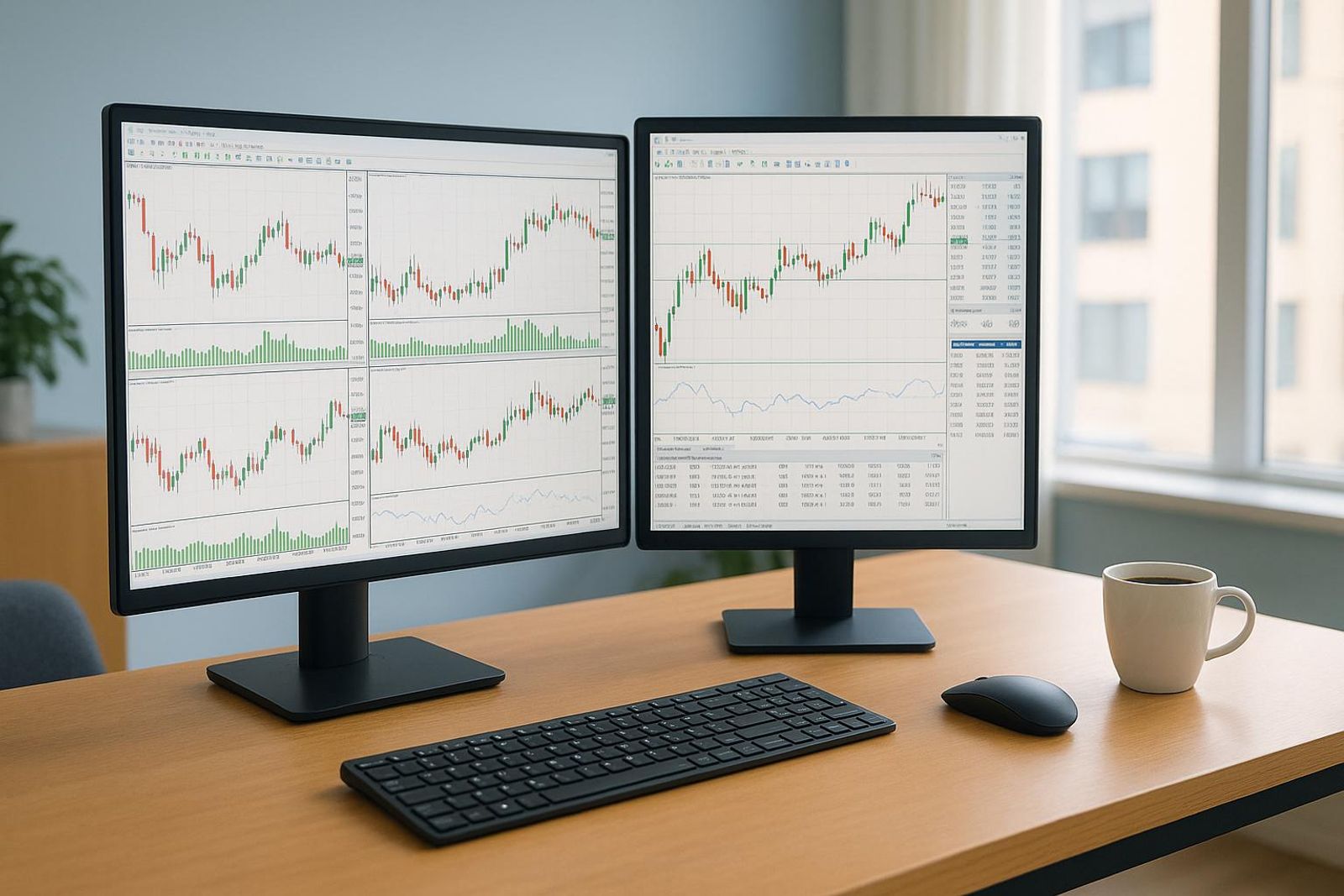
By Marcel Hambálek · Senior Trader, For Traders
MetaTrader 5 (MT5) is MetaQuotes' multi-asset trading terminal supporting forex, metals like XAUUSD, indices such as US100, futures, share CFDs and crypto. Its core feature set: 21 timeframes, 38 built-in technical indicators, 44 graphical objects, up to 100 open charts, six pending order types, Depth of Market, the MQL5 Expert Advisor engine and a multi-currency Strategy Tester — all free to download.
Key takeaways
- MT5 is free from MetaQuotes; the instruments, spreads and leverage you see come from your provider, not the platform itself.
- The four panels you touch every session are Market Watch, Navigator, the Toolbox and the chart window — learn those and you know MT5.
- Order control lives in the F9 ticket and One Click Trading: six pending order types, trailing stops and partial close, all keyboard-driven.
- The Strategy Tester runs multi-currency backtests with visual mode and genetic optimisation, but spread, slippage and tick-data quality limit how much you should trust the equity curve.
- Netting versus hedging account mode changes how every position behaves — most prop evaluations run hedging, so check before you scale in.
- MT5 still wins on EAs, backtesting and prop-firm coverage in 2026; cTrader, TradingView and dedicated CME futures platforms win on other things.
Watch: related video
What MetaTrader 5 Is — and the Features That Actually Matter
MetaTrader 5 is a free, multi-asset trading terminal built by MetaQuotes, used to chart and execute trades across forex, metals like XAUUSD, indices such as US100, futures and crypto, depending on what your broker or prop firm enables on your account. It's not a broker itself — it's the cockpit. Everything from the chart you stare at during London open to the Expert Advisor running your set-and-forget strategy lives inside this one terminal.
The headline spec sheet
Most traders use maybe 15% of what's actually in MT5. The rest sits in menus, waiting for the day you need a Fibonacci fan or a netting toggle. Here's the full spec, so you know what's available before you go looking for a plugin that already exists natively.
| Feature | Spec |
|---|---|
| Timeframes | 21, from M1 to MN1 |
| Built-in technical indicators | 38 |
| Graphical objects | 44 |
| Max open charts | 100 |
| Chart types | Line, OHLC bar, Japanese candlestick |
| Order types | 6 (market, 4 pending, stop-limit) |
| Position accounting | Netting and hedging modes |
| Programming language | MQL5 (Expert Advisors, custom indicators, scripts) |
Why MT5 exists alongside MT4
MetaQuotes built MT5 as a genuine upgrade, not a reskin — more timeframes (21 vs MT4's 9), a built-in economic calendar, Depth of Market, and MQL5, which compiles faster and handles multi-asset logic better than MQL4 ever did. MT4 hung around for a decade mostly on inertia and legacy EA libraries. If you're starting fresh in 2026, there's no real argument for choosing MT4 over MT5 — the newer terminal does everything the old one did and covers futures and exchange-traded instruments MT4 was never built for.
Is MT5 free?
Yes — the terminal itself costs nothing. You download it directly from MetaQuotes or through your broker's branded installer, and every feature in the spec table above comes standard, no paywall, no "pro" tier. What you pay for, if anything, is the data feed, the spread, or the challenge fee from whoever's giving you the account. That's the ownership split worth remembering: MetaQuotes builds and maintains the terminal, but your provider decides which symbols you can trade, what leverage you're given, and how your orders get executed. Two traders running identical MT5 installs can have completely different experiences depending on who's behind the account.
Day to day, you'll live in maybe five features — chart, Market Watch, a couple of indicators, pending orders, and the Toolbox tab for your trade history. The other 90% of the spec sheet — custom MQL5 scripts, the Strategy Tester, Depth of Market, netting mode — sits there until the exact week you need it, and then it's the difference between improvising and having the right tool already installed.
The MT5 Interface, Panel by Panel
The MT5 interface breaks down into three panels you'll open every single session: Market Watch for your symbols, Navigator for your tools, and the Toolbox for your results. Learn where each one lives and what it's actually telling you, and the MT5 control panel stops feeling like a wall of grey boxes and starts feeling like a cockpit.
Market Watch: your symbol list, specs and tick chart
Hit Ctrl+M and the MT5 Market Watch opens — your live list of symbols with bid, ask and spread updating tick by tick. Right-click any symbol and pull up Specification before you size a single lot. That one screen tells you contract size, tick value, minimum/maximum volume, margin currency and swap long/short — the numbers that turn "I'll risk 1%" into an actual lot size. Skip this on XAUUSD and you'll size a gold position like it's a forex pair, which is how a one-ATR move turns into a bigger drawdown than your plan allowed. Right-click in the Market Watch window itself to add US100, crypto pairs or futures contracts from the full symbol list — nothing shows up on your chart until it's sitting in this panel first.
Navigator: indicators, EAs and scripts
The Navigator window (Ctrl+N) is your toolbox-within-the-toolbox — a tree view of every built-in indicator, every Expert Advisor you've installed, every custom script, plus your connected accounts at the top. Drag an indicator from Navigator straight onto a chart and it attaches with default settings ready to tweak. Same motion for an EA: drag it onto the chart, confirm Algo Trading is enabled, and it starts watching ticks. If you wrote or bought an MQL5 script for one-click order placement, this is also where it lives until you drag it into action.
The Toolbox: Trade, History, News, Alerts, Experts, Journal
Press Ctrl+T and the Toolbox panel opens at the bottom of the terminal — this is where you actually run the session. Trade shows open positions and pending orders with live floating P/L. History is every closed trade, exportable for your own review log. Experts and Journal are your debugging pair: if an EA didn't fire on a signal it should have, the error — margin rejected, invalid stops, connection drop — is sitting in one of those two tabs, not a mystery.
Chart window, profiles and templates
MT5 profiles and templates solve the same annoyance in different ways. A profile saves your entire workspace — every open chart, every panel position, across however many monitors you run. A template saves a single chart's setup — indicators, timeframe, object styles. Build a gold template with your ATR and moving averages pre-loaded, and an index template with your session-open lines ready, and you stop rebuilding the same chart from scratch every morning. Ten minutes saved before the open is ten minutes you're actually watching price instead of dragging indicators.
Charting in MT5: Timeframes, Indicators and Objects
MT5 gives you 21 timeframes, 38 built-in indicators and 44 graphical objects across up to 100 open charts — the raw material for reading price is all there, free, out of the box. The question isn't whether the tools exist. It's whether you're using the ones that actually separate your analysis from everyone else staring at the same M15 chart.
21 timeframes and when the odd ones earn their place
Most traders live on M15, H1, H4 and D1 — which is exactly why those levels get crowded. MT5's 21 timeframes include seven that don't fit the standard doubling pattern: M2, M3, M10, H2, H3, H6 and H8. These aren't filler. A support level that lines up on H1 and H4 is visible to every retail trader with a platform — it's also visible to the algos that hunt stops just beyond it. Switch to H3 or H6 and you're plotting structure from a different lens entirely, one that doesn't share the crowd's exact pivot points.
Practical use: if you trade XAUUSD around the London-New York overlap, an H2 chart often catches the session's real swing structure cleaner than H1, which gets chopped up by every minor spike. M10 does the same job for scalpers who find M15 too slow and M5 too noisy.
38 built-in indicators and 44 graphical objects
MT5's indicators list splits into four families: trend (Moving Average, MACD, ADX, Parabolic SAR), oscillators (RSI, Stochastic, CCI, Momentum), volumes (On Balance Volume, Money Flow Index, Volumes) and the Bill Williams set (Alligator, Fractals, Gator Oscillator, Awesome Oscillator). You rarely need more than three or four running at once — stacking ten indicators on one chart just means ten lagging opinions arguing with each other.
The 44 graphical objects matter more than traders give them credit for. Beyond trendlines and horizontal rays, you get Fibonacci retracement, extension, fan and time zones, equidistant and Andrew's pitchfork channels, and Elliott wave markers (impulse and correction labels built in). Drawing a Fib retracement by hand at 2am during a US100 pullback and having it snap to swing high/low automatically beats eyeballing a ratio.
| Category | Examples | Typical use |
|---|---|---|
| Trend | Moving Average, MACD, ADX, SAR | Bias confirmation on H4/D1 |
| Oscillators | RSI, Stochastic, CCI | Overbought/oversold timing on M15 |
| Volumes | OBV, MFI, Volumes | Confirming breakout conviction |
| Bill Williams | Alligator, Fractals, Awesome Oscillator | Structure and momentum reads |
| Fibonacci tools | Retracement, Extension, Fan, Time Zones | Pullback entries, target mapping |
| Channels/Elliott | Pitchfork, Equidistant Channel, Elliott markers | Wave counts, range trading |
Chart types, synchronisation and multi-chart layouts
MT5 offers three chart types — line, OHLC bar and Japanese candlestick. Candlesticks dominate for a reason: wick and body in one glance tells you rejection, indecision or conviction faster than a bar chart ever will.
Where MT5 actually earns its keep is multi-chart layouts. A three-chart XAUUSD setup — H4 for directional bias, M15 for intraday structure, M1 for entry timing — beats constantly flipping one chart between timeframes. You're not losing your read on the bigger picture every time you zoom in for a fill. Save that layout as a workspace, and you open your terminal each morning already positioned to trade, not reorient.
What Can You Trade on MetaTrader 5?
MT5 supports forex pairs, metals including XAUUSD and XAGUSD, stock indices such as US100 and US30, energies, exchange-traded futures, share CFDs, bonds and crypto — it's a genuinely multi-asset terminal, not a forex platform with extras bolted on. But what you can actually trade depends entirely on who's feeding your terminal, which is the part most explainers skip.
The instrument classes MT5 supports
Out of the box, MT5 is instrument-agnostic — MetaQuotes builds the terminal, brokers and prop firms populate it. The platform architecture handles seven broad classes: forex majors/minors/exotics, metals (gold, silver, sometimes platinum and palladium), indices (US100/NSDQ, US30, DAX, and regional benchmarks), energies (WTI, Brent, natural gas), CME futures (ES, NQ, GC contracts offered by some firms), share CFDs on individual equities, and crypto pairs quoted against USD or USDT.
Why your symbol list looks different to someone else's
Two traders running the identical MT5 build can stare at completely different markets. One might see 40 forex pairs and nothing else; another gets gold, three indices, and a handful of CME futures. That's not a platform limitation — it's a liquidity provider and broker decision. Before you build a strategy around a specific instrument, check your firm's symbol specification sheet. Spread, swap, and session hours all vary by provider even when the ticker name is identical.
What traders actually trade: gold and indices lead
Across prop trading platforms, XAUUSD is the single most-traded instrument on MT5 — gold's volatility and round-the-clock liquidity make it the default proving ground for evaluations. US indices, led by US100/NSDQ, run a close second. Forex majors still see heavy volume, but the gold-and-index combination is where most challenge attempts live or die.
| Instrument | Typical Symbol | Session Hours | What to Watch |
|---|---|---|---|
| Gold | XAUUSD | 23h, Sun 22:00–Fri 22:00 UTC | ATR expansion around FOMC and NFP releases |
| Silver | XAGUSD | Same as gold | Wider spreads than gold, lower overnight liquidity |
| US Tech Index | US100 / NSDQ | Cash session 13:30–20:00 UTC | Gaps at cash open, thin pre-market fills |
| US Dow Index | US30 | Cash session 13:30–20:00 UTC | Correlated gaps with US100 at open |
| Crude Oil | USOIL / WTI | 23h with daily maintenance break | EIA inventory data spikes |
| CME Futures | GC, ES, NQ contracts | Exchange-defined, per CME Group schedule | Contract roll dates, margin changes |
| Share CFDs | AAPL.NAS, TSLA.NAS | Underlying exchange hours | Earnings-day gaps, dividend adjustments |
| Crypto | BTCUSD, ETHUSD | 24/7 | Weekend liquidity thinner than weekday |
Gold's ATR tends to double or triple in the ten minutes around a Fed decision or an NFP print — know that before you size a position going into the release. Indices gap at the cash open on US100 and US30 almost daily; if your stop sits inside that gap zone, slippage eats the difference. Check the CME Group calendar for futures contract specs and roll schedules before trading GC or ES through MT5.
How You Actually Control MT5: Orders, Stops and Shortcuts
MT5 control comes down to three things: how fast you can pull the trigger, how precisely you can enter without watching the screen, and how well you protect the trade once it's live. Get these mechanics wrong and even a good setup bleeds slippage and fat-fingered lots.
One Click Trading and the F9 order ticket
Enable One Click Trading under Tools > Options > Trade, tick the box, accept the risk disclosure, and a small panel appears top-left of every chart showing live Buy/Sell buttons with the current spread between them. One click sends a market order at whatever price is quoted — no confirmation, no ticket. It's built for scalpers and news traders who need a fill in under a second during an NFP spike, not for someone still deciding on size. Turn it off again once you're trading higher timeframes or anything that needs a second look before execution — an accidental tap on a mobile chart has turned into more than one blown account.
The F9 ticket is the safer default. Press F9 on any chart and you get a field-by-field order form: Symbol, Volume (in lots), order type (Market or Pending), Stop Loss and Take Profit price fields, and a Comment box useful for tagging strategies when you're reviewing trades later. Nothing fires until you click the Buy or Sell button inside the ticket itself.
Six order types: market, Buy/Sell Limit, Buy/Sell Stop, Stop Limit
MT5 ships with six order types total, and knowing which pending order fits which setup separates planned entries from chasing price.
| Order type | Fires when price | Typical job |
|---|---|---|
| Market order | Executes immediately | You want in now, at whatever the current quote is |
| Buy Limit | Falls to your price | Pullback into support or a key level before continuation |
| Sell Limit | Rises to your price | Fade into resistance or a premium zone |
| Buy Stop | Rises to your price | Breakout continuation above a range high |
| Sell Stop | Falls to your price | Breakdown continuation below a range low |
| Stop Limit | Breaks a trigger price, then fills at a second limit price | You want the break confirmed but won't chase it past a defined price |
Stop Limit is the one most traders skip, and it's underrated: set the stop price where you want confirmation of the breakout, and the limit price a few pips better — if the market rips past your limit before filling, you simply don't get in, instead of getting filled at a worse price during a fast move.
Risk-based lot sizing before you click
Lot size calculation should happen before you touch the ticket, not after. The formula: fixed risk in account currency ÷ (stop distance in pips × pip value) = lots.
Worked example on gold: you're risking $200 on a XAUUSD long, stop at 350 pips (3.50 on the price feed), and pip value on a standard lot of gold runs roughly $1 per 0.01 move with your broker's contract size — so $10 per pip on a full lot. That's $200 ÷ (350 × $10) ≈ 0.057 lots. Round down to 0.05 to stay inside your risk cap. Skip this step and a wide ATR-driven stop on gold will blow past your intended risk without you noticing until the equity curve tells you.
Modifying stops, trailing stops and partial close
Once you're in, drag the stop-loss or take-profit line directly on the chart to adjust it — MT5 updates the order in real time, no ticket required. For a trailing stop, right-click the open position in the Trade tab, choose Trailing Stop, and pick a distance in points. The one big limitation: trailing stops are processed client-side, meaning they only run while your terminal is open and connected — close MT5 or lose your VPS connection and the trailing logic stops with it, leaving your fixed stop as the only protection.
Partial close works the same way every time: right-click the position, choose Close Partial, and enter a smaller volume than your full size. Scale out a third at your first target, let the rest run on a trailing stop — one of the simplest MT5 keyboard shortcuts for managing a winner without closing the whole ticket.
Depth of Market: When It's Signal and When It's Noise
MT5 Depth of Market (DOM) shows the resting bid and ask volume stacked at each price level above and below the current market — a genuine upgrade over MT4, which never shipped a native order book view at all. Open it with Alt+B, or right-click any symbol in Market Watch and select Depth of Market. Whether that ladder tells you anything useful depends entirely on what you're trading.
How to open and read the MT5 DOM
The DOM window splits into two columns: bids stacking down from the current price, asks stacking up. Each row shows a price level and the volume resting there. Thin rows — small size sitting alone between thicker levels — tend to get run through fast, with price barely pausing. Thick rows show absorption: size that's soaking up aggressive orders without giving ground, often the footprint of a larger player defending a level. Watch how fast size refreshes after a print goes through. If a thick bid gets hit and immediately reloads at the same price, that's real support holding. If it disappears the moment price touches it, you were looking at a level that wasn't going to hold anyway.
Exchange-traded versus OTC depth
This is the distinction that separates traders who use the DOM well from traders who get burned by it. On CME futures depth — gold futures, index futures, FX futures — the ladder reflects a genuine centralized order book. Every resting order from every market participant routing through that exchange is represented, which is why futures traders treat level 2 data as an edge, not decoration.
On OTC forex and CFD symbols — EURUSD, XAUUSD, US100 as a CFD — the DOM only shows your broker's or liquidity provider's own quote stack. There's no central order book for over-the-counter instruments; what you're seeing is one provider's aggregated pricing, not the market. Useful as an indicative read on where your own fills are likely to happen, but it is not a window into global order flow the way CME futures depth is. Confuse the two and you'll start reading noise as signal.
Trading directly from the DOM ladder
You can place orders straight off the ladder — click a price level and MT5 populates a buy or sell ticket at that level, useful for scalping a specific price without typing it into the standard order panel. It's fast, and on exchange-traded futures it's a legitimate execution tool.
The trap: around NFP, FOMC, or any high-impact release, size on OTC ladders can appear and vanish in fractions of a second — spoofed or simply requoted away before you can click it. Don't chase size that looks too good during a data spike; by the time your click registers, that liquidity is often gone and you get a worse fill or slippage instead. Treat the DOM as a read on conditions, not a guarantee of where your order lands.
Ready to trade funded capital?
Choose your path — Instant Accounts, One-Step or Two-Step Challenges — from just $23, with up to $300,000 in funded capital.
Choose your challengeExpert Advisors, MQL5 and Enabling Algo Trading Safely
An Expert Advisor (EA) is a program written in MQL5 that can analyse the chart, open, modify and close positions on its own, running inside MT5 as long as the terminal is live. That's the whole promise of MT5 Expert Advisors — you code (or buy) the logic once, and it executes the same way every time, without you babysitting the chart through every FOMC print or Asian-session chop.
What an Expert Advisor actually does
An EA reads price and indicator data on every tick, checks it against rules you've defined, and fires trade requests through the terminal — entries, stop adjustments, partial closes, trailing stops. It doesn't sleep, doesn't hesitate, and doesn't move its stop "just this once." That consistency is the entire case for algorithmic trading: it removes the emotional leg of execution, not the thinking that went into building the strategy.
How to install and enable an EA (step by step)
- Go to File > Open Data Folder and drop the .ex5 or .mq5 file into the MQL5/Experts folder.
- Restart MT5, or right-click Expert Advisors in the Navigator panel and refresh.
- Open Tools > Options > Expert Advisors and tick "Allow algorithmic trading" (plus WebRequest URLs if the EA needs them).
- Toggle the Algo Trading button on the main toolbar so it shows green.
- Drag the EA from the Navigator onto the chart you want it running on.
- Confirm the smiley face icon in the top-right of the chart is live, not a sad face or X.
- Watch the Experts and Journal tabs in the Toolbox — every order, error and rejection gets logged there, and that's where you'll catch a broken EA before it costs you.
Indicators, scripts and the MQL5 Wizard
Not every automation needs custom code. The MQL5 Wizard lets you assemble a basic EA from built-in indicator conditions and trade modules with zero programming — useful for testing a simple crossover or breakout idea fast. If you'd rather buy than build, the MQL5 Market has thousands of ready-made EAs, indicators and scripts, with user reviews and demo versions you can test before paying. Either route, treat an EA like you'd treat a signal provider: verify it, don't trust the sales pitch.
VPS hosting and why uptime matters
An EA only trades while your terminal is running and connected — close your laptop lid during a London session breakout and your EA goes dark with it. That's what makes VPS hosting a feature, not a luxury upgrade: a virtual server keeps MT5 running 24/5 with low latency to the trade server, so your automation doesn't depend on your home Wi-Fi or your laptop battery. Before you let any EA — yours or purchased from the MQL5 Market — anywhere near live capital, run it on a demo account first. Unvetted logic with real drawdown behind it is how accounts blow up quietly over a weekend you weren't watching.
The MT5 Strategy Tester: Backtesting and Its Limits
The MT5 Strategy Tester (Ctrl+R) replays an Expert Advisor or manual strategy against historical price data so you can see how it would have performed before you risk a cent of simulated capital on it. It's not a crystal ball — it's a filter for killing bad ideas early.
Running your first backtest, step by step
- Open the Strategy Tester panel (Ctrl+R) in MT5.
- Select the Expert Advisor you want to test from the dropdown.
- Pick the symbol and timeframe — gold (XAUUSD) and indices like US100 behave very differently from EURUSD, so test on the instrument you'll actually trade.
- Set your date range, covering trending, ranging and high-volatility stretches, not just a cherry-picked bull run.
- Choose modelling quality — "Every tick based on real ticks" is the one that matters if you want results you can trust; the lower-quality modes interpolate price and flatter your equity curve.
- Set initial deposit and leverage to match what you'd realistically run on a funded account.
- Toggle visual mode if you want to watch trades fire bar by bar.
- Run the test, then read the report: profit factor, expected payoff, maximum drawdown and recovery factor are the four numbers that tell you whether this strategy survived or got lucky.
Visual mode, multi-currency testing and genetic optimisation
Visual mode slows the backtest down so you can watch entries, stops and exits play out on the chart — useful for sanity-checking logic before you trust the numbers. Multi-currency testing lets a single EA trade several symbols at once in one tester pass, which matters if your strategy hedges across correlated pairs or trades baskets. Genetic optimisation sweeps thousands of parameter combinations without brute-forcing every single one, surfacing the input sets that historically performed best — fast, but dangerous if you don't know what you're looking at next.
What a backtest will never tell you
Historical tick quality varies wildly between data providers, and most brokers' free tick history has gaps that quietly smooth over real slippage. Your assumed spread and commission settings flatter results unless you deliberately stress them wider. Genetic optimisation is especially guilty of curve fitting — it will hand you a parameter set that's beautifully tuned to dead historical noise and dies the moment live conditions shift. News-driven gaps on gold around NFP or FOMC are almost never modelled accurately in tick data, which is exactly when real accounts take the hit a backtest never showed.
Treat a clean backtest as a hypothesis, not a result. Forward test on demo before anything else — watch how the strategy handles real spread, real slippage and real fills across a few weeks of live market conditions before you even think about deploying it on a funded account.
Netting vs Hedging Accounts: The Setting That Changes Everything
Netting and hedging are the two position accounting modes in MT5, and they change how a second order on the same symbol behaves — netting merges it into one position, hedging keeps it separate. Most traders never check which mode they're on until an EA does something they didn't expect, like closing a position they thought was still open.
How netting accounts behave
In netting mode, MT5 allows exactly one open position per symbol. If you're long 0.5 lots XAUUSD and you buy another 0.3 lots, you don't get a second ticket — you get one position of 0.8 lots with a volume-weighted average entry price. Sell against an open long and it reduces or flips the position instead of opening a hedge. There's no "buy and sell the same pair at once" here. This is how most futures accounts and US equity accounts are structured by convention, and it's the default on a lot of institutional-style setups.
How hedging accounts behave
In hedging mode, every order you place opens its own independent position with its own ticket, its own stop loss, and its own take profit. You can be long 1.0 lot and short 0.5 lots on US100 at the same time — the terminal just nets the P&L on your equity line, it doesn't net the positions. This is what makes scaling in with staggered stops, partial closes on specific legs, and grid or hedging-style EAs actually work as designed. An Expert Advisor built assuming hedging will misfire badly on a netting account — it'll try to open a second ticket and instead modify your existing one, which can wreck a martingale or grid logic completely.
You can check which mode you're on without guessing: it's printed in the Journal tab the moment you connect to a server, and it's listed in the trade server specification under your broker or prop firm's account details. Don't assume — confirm it before you deploy anything automated.
| Aspect | Netting | Hedging |
|---|---|---|
| Positions per symbol | One, volume-averaged | Unlimited, independent |
| Opposite direction order | Reduces/flips position | Opens separate hedge |
| Stop-loss management | Single stop for whole position | Per-ticket stops |
| Common on | Futures-style, some US accounts | Most retail forex/CFD, most prop firms |
Which mode prop evaluations use
Across For Traders evaluations and most retail-facing prop setups in general, hedging is the standard account mode — it matches how retail forex and CFD brokers have always operated and it's what the majority of publicly available Expert Advisors are coded for. If you're scaling into a position during a Two-Step Challenge or running a strategy that legs in and out at different levels, hedging mode is what lets that logic behave the way you designed it. Still check the Journal on connect — position accounting is a server-level setting, not something you toggle, and assuming the wrong mode is a quiet way to blow a prop firm evaluation on a technicality rather than a trading mistake.
MT5 Strengths and Weaknesses in 2026
Pros
- Free to download, with near-universal availability across brokers and prop firms
- Genuinely multi-asset: forex, metals, indices, futures, share CFDs and crypto in one terminal
- 21 timeframes, 38 built-in indicators, 44 graphical objects and up to 100 open charts
- Native Depth of Market and six pending order types including Stop Limit
- MQL5 Expert Advisors plus a multi-currency Strategy Tester with genetic optimisation
- Mature mobile apps with full order management, not just read-only charts
Cons / risks
- Interface looks dated next to cTrader and TradingView, and the learning curve is front-loaded
- No native daily loss limit or risk-cap feature — you have to self-police drawdown
- Backtest quality depends entirely on your provider's historical tick data
- MT4 Expert Advisors are not compatible — anything in MQL4 needs rewriting
- Trailing stops and most EAs only run while the terminal is open, so a VPS becomes a running cost
- Instrument list, spreads and execution are set by your provider, not by the platform
Ready to trade funded capital?
Choose your path — Instant Accounts, One-Step or Two-Step Challenges — from just $23, with up to $300,000 in funded capital.
Choose your challengeFrequently Asked Questions
What are the main features of MetaTrader 5?+
MetaTrader 5's core features are Market Watch for live prices, a multi-timeframe chart window, the Navigator panel for accounts and indicators, one-click trading, a built-in Strategy Tester, Depth of Market, and support for Expert Advisors (EAs) written in MQL5. Day to day, most traders lean hardest on the order ticket, pending orders, and the Toolbox tab for trade history and alerts. The Strategy Tester and EAs matter more once you're refining a system than when you're learning the platform. Multi-asset symbol support — forex, gold, indices, crypto CFDs, futures-style instruments — is what makes MT5 relevant across a prop trading challenge, not just forex.
What can you trade on MetaTrader 5?+
MetaTrader 5 supports forex pairs, gold and commodities, stock indices like the US100/NSDQ, individual stocks/CFDs, and crypto CFDs, all from a single Market Watch window. The exact symbol list depends on your broker or challenge provider, not MT5 itself — the platform is the terminal, not the liquidity source. On a prop firm's MT5 setup, gold and indices are typically the most-traded instruments alongside major forex pairs. Check your symbol specification sheet for lot sizes, spreads, and trading hours before you size a position, since these vary by asset class even within the same terminal.
How is the MT5 interface laid out?+
The MT5 interface splits into four main zones: Market Watch (left, live quotes), Navigator (left, below Market Watch — accounts, indicators, EAs), the chart window (center, multi-timeframe), and the Toolbox (bottom — trade tab, history, alerts, journal). You right-click the chart for templates and objects, and drag indicators from Navigator straight onto a chart. New users often miss the Toolbox's trade tab, which is where your open positions, pending orders, and account equity actually live. Spend ten minutes dragging panels into a layout that fits your workflow — it's the single biggest time-saver for MT5 control once you're trading live.
How do you control MT5 for faster order execution?+
MT5 control comes down to three tools: one-click trading (enabled via the chart toolbar), keyboard shortcuts for order types, and hotkeys for closing positions fast. Enable one-click trading when you need to react to a breakout without opening the full order ticket — but keep it off during choppy news sessions where a fat-finger click costs you. Pending orders (buy/sell limit and stop) let you set entries in advance so you're not staring at the screen all session. Trailing stops and partial closes, set from the order modify window, are what separate a managed trade from a set-and-forget hope.
What is Depth of Market in MT5 and when does it help?+
Depth of Market (DOM) shows the live stack of buy and sell orders at each price level for a symbol, giving you a read on near-term liquidity. It's genuinely useful on liquid futures-style and index instruments around high-volume sessions, where you can spot a wall of resting orders before price reacts to it. On thinner forex pairs or during low-volume hours, DOM often just shows noise and whipsaws your read on the market. Most discretionary traders check DOM around news events or key levels rather than watching it tick-by-tick all session.
How do Expert Advisors work in MT5?+
Expert Advisors (EAs) are automated trading scripts written in MQL5 that execute entries, exits, and risk rules without manual clicks, running inside the MT5 terminal. To enable algo trading, click the "Algo Trading" button on the toolbar and allow automated trading in the EA's properties — without both switched on, the EA sits idle. Before running any EA on live or challenge capital, backtest it in the Strategy Tester and forward-test on a demo account, since broker-specific spread and slippage conditions change real performance. Always know your EA's max drawdown behavior before trusting it near a daily loss limit.
What are the limits of the MT5 Strategy Tester?+
The MT5 Strategy Tester backtests a strategy against historical tick or OHLC data and reports metrics like drawdown, profit factor, and win rate, but it can't fully replicate live spread widening, slippage, or liquidity gaps during news. Tick-data backtests are more accurate than OHLC but still assume a modeled fill, not a guaranteed one. Treat a strong backtest as a hypothesis, not proof — the real test is forward-testing on a demo account under live market conditions before you size up. Overfitting to historical data is the most common mistake traders make here.
What's the difference between MT4 and MT5 in 2026?+
MT5 adds more timeframes, an economic calendar, Depth of Market, netting and hedging account modes, and a more capable Strategy Tester than MT4, which is now a legacy platform with limited broker support for new symbols like crypto CFDs and modern index baskets. For most traders, upgrading is worth it simply because MT4's EA ecosystem and symbol coverage are shrinking while MT5 keeps getting broker and asset-class support. The main reason to stay on MT4 is a large library of legacy EAs written in MQL4 that haven't been ported. For a new prop trading challenge, MT5 is the more future-proof choice.
If I'm switching from MetaTrader, what are my options?+
The main alternatives to MetaTrader are cTrader (cleaner UI, native Level II depth, built-in cBot automation), TradingView (best-in-class charting with broker/broker-bridge execution), and dedicated futures platforms like NinjaTrader or Rithmic-based terminals for CME futures prop trading. Each trades off something: cTrader has a smaller symbol universe than MT5 at many brokers, TradingView's execution depends on the broker integration behind it, and futures platforms assume you're committed to futures specifically rather than multi-asset CFDs. Most traders switch for charting quality or automation language preference (Python/cBot vs MQL5), not because MT5 is broken.
What's the difference between netting and hedging accounts in MT5?+
A netting account merges all positions on one symbol into a single net position, while a hedging account lets you hold simultaneous long and short positions on the same symbol separately. Most prop firm evaluations, including Two-Step and Three-Step Challenges, run on hedging-mode MT5 accounts because it gives clearer per-trade tracking for drawdown and daily loss limit calculations. Netting is more common on US-regulated retail accounts due to local rules. Check which mode your challenge provider uses before you plan a hedged or scaling-in strategy, since a netting account will quietly merge trades you meant to keep separate.
Written by
Marcel Hambálek
Senior Trader, For Traders
Marcel trades Futures and Forex day-trading setups on funded accounts and writes about the executional details most traders skip — order types, slippage, session timing, platform quirks on MT5 and NinjaTrader. Pragmatic, mechanics-first, no fluff.
Follow on LinkedInReady to trade funded capital?
Choose your path — Instant Accounts, One-Step or Two-Step Challenges — from just $49, with up to $300,000 in funded capital.
Choose your challengeTrade up to $300,000
Choose challenge