Setting Stop Loss and Take Profit in MT5: Best Practices
Learn how to set stop loss and take profit in MT5 on desktop, mobile and chart drag — plus multi-TP, break-even, trailing stops and the Invalid S/L fix.
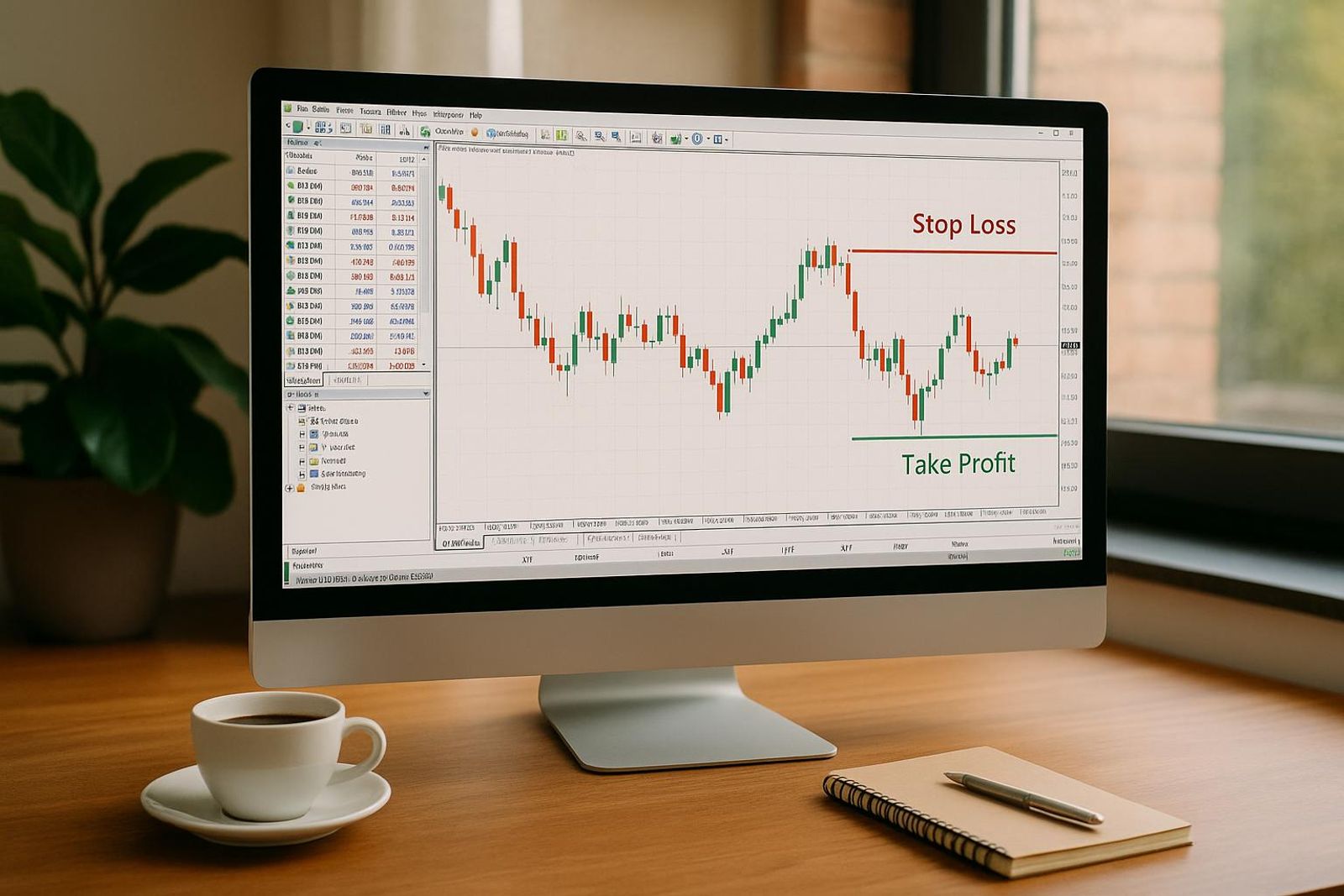
By Marcel Hambálek · Senior Trader, For Traders
To set a stop loss and take profit in MT5, press F9 to open the New Order window, enter your absolute Stop Loss and Take Profit prices (not pip distances), then click Buy or Sell. For a position already open, go to the Trade tab (Ctrl+T), right-click the position, choose Modify or Delete Order, type the SL and TP price levels and confirm — both levels then sit on the broker's server and execute even if your terminal is closed.
Key takeaways
- SL (stop loss) closes a losing trade at a price you choose in advance; TP (take profit) closes a winning trade at your target — both are entered in MT5 as absolute prices, never as pip distances.
- Three desktop routes cover everything: the New Order ticket (F9), Trade tab → Modify or Delete Order for live positions, and SL/TP fields inside pending orders like Buy Stop and Sell Limit.
- Chart dragging needs two settings on first: Tools → Options → Charts → Show trade levels, and Tools → Options → Trade → One-Click Trading.
- MT5 has no native TP1/TP2/TP3 field — multiple take profits are built by splitting volume with partial closes, e.g. three 0.10 lot exits from a 0.30 lot XAUUSD position.
- Trailing stops in MT5 run client-side on your terminal, so they stop trailing the moment you close the platform; a hard SL on the server does not.
- Size the SL first, then the lot: a 0.5–1% risk per trade keeps a single loss well inside a typical 5% daily loss limit on a prop challenge.
Watch: related video
What do SL and TP mean in trading?
SL (Stop Loss) is a resting order that closes your position at a pre-set worse price to cap your loss. TP (Take Profit) is a resting order that closes your position at a pre-set better price to bank your gain. That's the whole concept — everything else is detail. If you're asking what is SL and TP in trading, this is the one-line answer: SL protects capital when you're wrong, TP locks in reward when you're right.
The abbreviations aren't trader slang invented for cool points — they come straight from the MT5 order ticket. Open F9 on any chart and the two input fields are literally labelled "Stop Loss" and "Take Profit." Traders shortened them to SL and TP in chat, journals, and strategy notes, and the shorthand stuck across the whole industry. So the SL and TP meaning in trading you'll see on forums, in prop firm rulebooks, and in MT5's own help docs is the same thing — just abbreviated.
SL meaning in trading: your exit when you're wrong
Your stop loss is the price where you admit the trade idea didn't work and take the small, planned loss instead of an unplanned bigger one. Say you go long XAUUSD at 3,412.00. You place your SL at 3,398.00 — 14.00 below entry. If gold reverses and hits that level, MT5's server closes the position automatically, even if your laptop is asleep. No SL means no defined risk, and no defined risk is how one bad NFP print turns into a blown daily loss limit.
TP meaning in trading: your exit when you're right
Take profit meaning is the mirror image: a price where you've decided the move has paid you enough and you want the gain locked in without babysitting the chart. On the same XAUUSD long, you set TP at 3,440.00 — 28.00 above entry. Risk is 14.00, reward is 28.00 — a 1:2 risk to reward ratio. That ratio is the number that actually matters more than your win rate: at 1:2 R:R, you can be wrong 40% of the time and still come out ahead.
Quick glossary: SL, TP, BE, R:R, trailing stop
| Term | Meaning | XAUUSD example (long @ 3,412.00) |
|---|---|---|
| SL | Stop Loss — closes trade at a pre-set worse price | 3,398.00 (14.00 risk) |
| TP | Take Profit — closes trade at a pre-set better price | 3,440.00 (28.00 reward) |
| BE | Break-even stop — SL moved to entry price once trade is in profit | SL moved to 3,412.00 |
| R:R | Risk to reward ratio — reward distance ÷ risk distance | 28.00 / 14.00 = 1:2 |
| Trailing stop | SL that follows price at a fixed distance as the trade moves in your favour | Trails 14.00 behind as gold rises |
How do you set a stop loss and take profit in MT5 on desktop?
You set SL and TP in MT5 by typing absolute price levels into the New Order window (F9) before you enter, or by right-clicking an open position in the Trade tab (Ctrl+T) and choosing Modify or Delete Order. Both fields live on the broker's server once you confirm, not on your local terminal — so they trigger whether your platform is open or your laptop is shut. Here are the three ways you'll actually use this in practice.
Method 1: The New Order ticket (F9) before you enter
- Press F9 to open the New Order window.
- Select your symbol — say, XAUUSD.
- Set your Volume (lot size).
- Confirm Type: Market Execution.
- Fill in the Stop Loss and Take Profit fields with exact prices.
- Click Buy by Market or Sell by Market.
This is the cleanest way to learn how to set SL and TP on MT5 — everything is locked in before slippage or hesitation can creep into your decision.
Method 2: Modify an open position via the Trade tab (Ctrl+T)
- Press Ctrl+T to bring up the Trade tab (Terminal window).
- Right-click the open position you want to adjust.
- Choose Modify or Delete Order.
- Type your new SL and TP price levels.
- Click Modify to confirm.
Use this the moment you decide to trail a stop, lock in break-even, or widen a target after a strong impulse leg — no need to close and re-open the position.
Method 3: SL and TP inside a pending order
- Press F9, then set Type to Pending Order.
- Choose Buy Stop, Buy Limit, Sell Stop, or Sell Limit depending on your setup.
- Set your entry (trigger) price.
- Fill in SL and TP the same way as a market order.
These levels travel with the pending order and only activate once the order fills — handy for breakout or pullback entries you're planning ahead of a session, like before London open or an FOMC print.
Always type absolute prices, not pip distances
MT5's Stop Loss and Take Profit fields want a real price, not a distance. On a long XAUUSD position opened at 3,412.00, you type 3,398.00 into the Stop Loss field — not "14" and not "1400." Typing a pip count into a price field is one of the fastest ways to place your stop 100x too far away or reject the order outright.
Because both levels are stored server-side under market execution, they'll fire even if MT5 is closed on your end — but gaps around news or illiquid opens can still produce slippage past your exact level, so don't treat SL/TP as a guaranteed fill price.
How do you drag SL and TP lines directly on the MT5 chart?
To drag stop loss and take profit on the MT5 chart, first enable Tools → Options → Charts → Show trade levels and Tools → Options → Trade → One-Click Trading — then click and hold the horizontal SL or TP line and drag it to the new price. This is the mt5 drag to set take profit and stop loss on chart workflow every discretionary trader ends up using once typing exact prices gets tedious on an open position.
The two settings you must enable first
Without show trade levels switched on, your SL and TP simply don't render on the chart — you'll have a working stop sitting on the server, but no visual line to grab. Go to Tools → Options → Charts and tick "Show trade levels." Separately, Tools → Options → Trade has a "One-Click Trading" toggle — leave it off and every drag you make pops a confirmation dialog before the change goes live; turn it on and the drag executes the moment you release the mouse. Both settings are one-time terminal preferences, not per-chart — set them once and every symbol you open inherits them.
Drag, drop and confirm the new levels
With mt5 chart trade levels visible, click and hold the red SL line (or blue TP line) and pull it up or down to the price you want, then release. If One-Click Trading is off, MT5 shows a small confirmation box with the new price — click "Modify" to lock it in. Here's the part traders miss: you don't need an existing SL or TP to start dragging. Click on the position's open-price line itself and drag toward an empty area of the chart above or below price — MT5 creates a brand-new SL or TP at that level, exactly as if you'd typed it into the Modify Position window.
When dragging beats typing (and when it doesn't)
Dragging is genuinely faster when you're adjusting a stop to a structural level — the last swing low, a moving average, a round-number support zone you can eyeball on the candle. You see the level, you pull the line to it, done in two seconds. It falls apart on tick-heavy instruments like US100, where a single pixel of mouse movement can represent several points of price. If the level matters to the exact tick — because you're managing tight risk on a fast-moving index or gold spike — open the Modify Order window and type the number instead. Save the drag for swing-based adjustments on slower pairs, and type when precision on US100 or XAUUSD actually changes your risk-reward math.
How do you set stop loss and take profit in MT5 mobile?
On MT5 mobile, tap Trade → the symbol → New Order, set your volume, tap the Stop Loss and Take Profit fields and enter price levels, then tap Buy or Sell. For a position that's already running, go to the Trade tab, long-press (Android) or tap (iOS) the position, select Modify, punch in your new SL/TP, and confirm. Same server-side execution as desktop — the levels sit with your broker even if your phone's in your pocket.

Setting SL and TP when opening a trade on iOS and Android
The flow is nearly identical on both operating systems, which matters if you're managing positions across a phone and tablet with different OSes. Open the Trade tab, tap the instrument — say XAUUSD or US100 — tap New Order, and you'll see Volume, Stop Loss, and Take Profit fields stacked above the Buy/Sell buttons. Tap into the SL field and either type a price directly or use the +/- steppers, which move the level in fixed increments (usually points, not price — more on that below). Do the same for Take Profit, then swipe the blue Buy or red Sell button. If you skip SL/TP at entry, the order still fills — nothing forces protective levels on mobile, which is exactly how undisciplined entries turn into unmanaged drawdown while you're away from your desk.
Long-press → Modify on an open position
To set or change SL/TP on a live position: Trade tab, find your open trade, long-press it on Android (a quick tap opens the same context menu on iOS), and select Modify. This is the mt5 mobile modify position flow you'll use constantly — trailing a stop after a strong US100 push, or tightening risk on XAUUSD ahead of an FOMC print you can't watch from a screen. Enter your new SL and TP prices, hit Modify, and the change confirms in under a second if your connection's solid. This same tap sequence answers the mt5 android stop loss and mt5 ios take profit question regardless of which OS you're on — Meta Quotes kept the UI consistent across both builds.
Price vs points: the toggle that confuses everyone
This is where most mobile users get burned once, then never forget it. MT5 mobile often displays SL/TP distance in points — the deviation from current price — rather than an absolute price level. On XAUUSD, a broker quoting to two decimals means 100 points = 1.00 in price. So if you see a field showing "1400" and assume that's the stop-loss price, you've actually set a stop 14.00 away from entry — potentially wiping out far more account risk than you intended, or so far away it never triggers. Always check whether the field label says "Price" or is implicitly points-based by watching how the number changes relative to entry. When in doubt, switch to typing the absolute price directly instead of using the steppers — it removes the ambiguity entirely. This exact confusion is also what drives the Indonesian-language search "cara pasang SL dan TP di MT5" — the points/price toggle trips up traders regardless of native language, because the UI logic is universal across every MT5 build.
Given that most traders check and adjust positions from their phone between charts, mastering this screen isn't optional — it's where your actual risk management happens most of the day.
How do you set multiple take profits (TP1, TP2, TP3) in MT5?
MT5 gives every position exactly one Take Profit field — there's no TP1/TP2/TP3 slot anywhere in the platform. If you want to scale out of a trade, you build it yourself, either by splitting your entry into separate positions or by trimming volume off one position as price hits each target.
Why MT5 has no native multi-TP field
This trips up a lot of traders coming from platforms that advertise "multiple take profit" as a feature. MT5's order structure ties one SL and one TP to one position ticket, full stop. There's no menu option, no hidden setting, no broker plugin that adds extra TP slots to a single ticket in the standard terminal. Some brokers layer this with an EA or a "Trade Panel" add-on, but that's third-party — not core MT5 functionality. Once you accept that, the workaround becomes obvious: you need multiple tickets, or you need to shrink one ticket's volume manually.
Splitting volume with partial close
Partial close is how most traders actually execute TP1/TP2/TP3 on a single entry. Right-click the open position in the Trade tab, choose Modify or Delete Order, and instead of touching SL/TP, look for the Type: Close position option. Change the Volume field to less than your full size — say 0.10 lots out of a 0.30 lot position — and confirm. MT5 closes that slice at market and leaves the remainder running under its own ticket, with the original SL still attached (you'll usually want to move it once volume is trimmed).
The alternative — opening three separate positions at entry, each with its own fixed TP — removes the need to be at your screen. Each position closes itself automatically when price reaches its level, even if your terminal is shut. Partial close, by contrast, requires either a manual click at the platform or an EA/script watching price and executing the reduction for you.
| Method | Spread cost | Works if terminal is closed | Setup effort |
|---|---|---|---|
| 3 separate positions, 3 fixed TPs | 3x spread paid | Yes | Low — set once at entry |
| 1 position, manual partial close | 1x spread paid | No — needs you present | Medium — active management |
| 1 position, EA-automated partial close | 1x spread paid | Yes, if EA is running on a VPS | Higher — requires automation setup |
Worked example: scaling a 0.30 lot XAUUSD position into three exits
Say you go long 0.30 lots XAUUSD at 3,412.00 with your stop set for a 1R risk of roughly 14 points. Here's how the scale-out plays out:
- TP1 — 3,426.00 (1R): partial close 0.10 lots, banking the first slice of reward and covering your risk on the remaining size.
- TP2 — 3,440.00 (2R): partial close another 0.10 lots, locking in a second reward tranche while 0.10 lots stays open.
- Runner — final 0.10 lots: left open with the stop trailed behind price, giving the position room to catch a bigger XAUUSD leg without capping the upside.
This is scaling out in its purest form — you're not guessing the exact top, you're harvesting reward in stages while keeping optionality on the trend. The trade-off is real: three tickets cost you three spreads on entry and exit, but they survive a dead laptop battery. One ticket with partial closes saves on spread but demands you're either watching the chart or running an EA that can execute the partial close volume for you.
How do you set a break-even stop (BE) in MT5?
To move a stop to break-even in MT5, open the Trade tab (Ctrl+T), right-click the open position, choose Modify or Delete Order, set the Stop Loss field to your entry price (or entry plus a few points to cover spread and commission), then click Modify. That's how to set BE in MT5 in one action — no new order, just an edit to the one already working.
Moving the stop to entry in two clicks
Fastest route on desktop: click and drag the SL line straight onto the position's entry line on the chart. MT5 snaps a confirmation box, you hit Modify, done — two clicks, no typing. If you prefer the dialog, Ctrl+T → right-click → Modify or Delete Order → paste the entry price into the SL field → Modify. Either way you're doing the same job traders mean when they say "move stop to entry" — the order stays live on the broker's server, so it fires even if your platform disconnects.
Break-even on mobile
On the MT5 app, long-press the open position in the Trade tab, tap Modify, set the SL field to your entry price, confirm. Same mechanic as desktop, just fewer clicks to get there. Useful when you're away from the desk and price has run far enough that you want to lock in a scratch trade rather than babysit it through a session you can't watch — NFP releases and FOMC afternoons are the classic case.
When BE protects you — and when it just gets you wicked out
Break-even discipline gets oversold as a universal rule, and it isn't one. On XAUUSD specifically, moving to BE before you've banked at least 1R typically parks your stop right inside the pair's normal noise — a single ATR-sized retrace, which gold throws constantly, takes you out of a trade that was structurally still right. You didn't get stopped out on bad analysis; you got wicked out of a trade by moving your stop too early and too tight.
- Wait for 1R or a structural higher low before touching the stop — not "price moved 20 pips and I got nervous."
- Add a buffer — BE plus a few points (or ATR-scaled points on gold) so a stopped-out "break-even" trade doesn't quietly become a small loss once spread and commission are subtracted.
- Match the buffer to the instrument — a few points on EURUSD is noise-tight; the same distance on XAUUSD is nothing, gold needs room scaled to its own ATR.
The rule that actually holds up: BE isn't a reflex the moment a trade goes green, it's a decision you make once the market has told you something — a level reclaimed, a swing low formed, 1R already banked. Move the stop too early and you're not managing risk, you're pre-cancelling trades that would have paid.
How do you set a trailing stop in MT5 — and why does it stop working?
Right-click the open position in the Trade tab, choose Trailing Stop, then pick a preset distance in points or select Custom to type your own — MT5 will then walk your stop up behind price at that fixed distance as long as the terminal stays connected. That last part is the catch most traders find out about the hard way, usually after a good trend day.
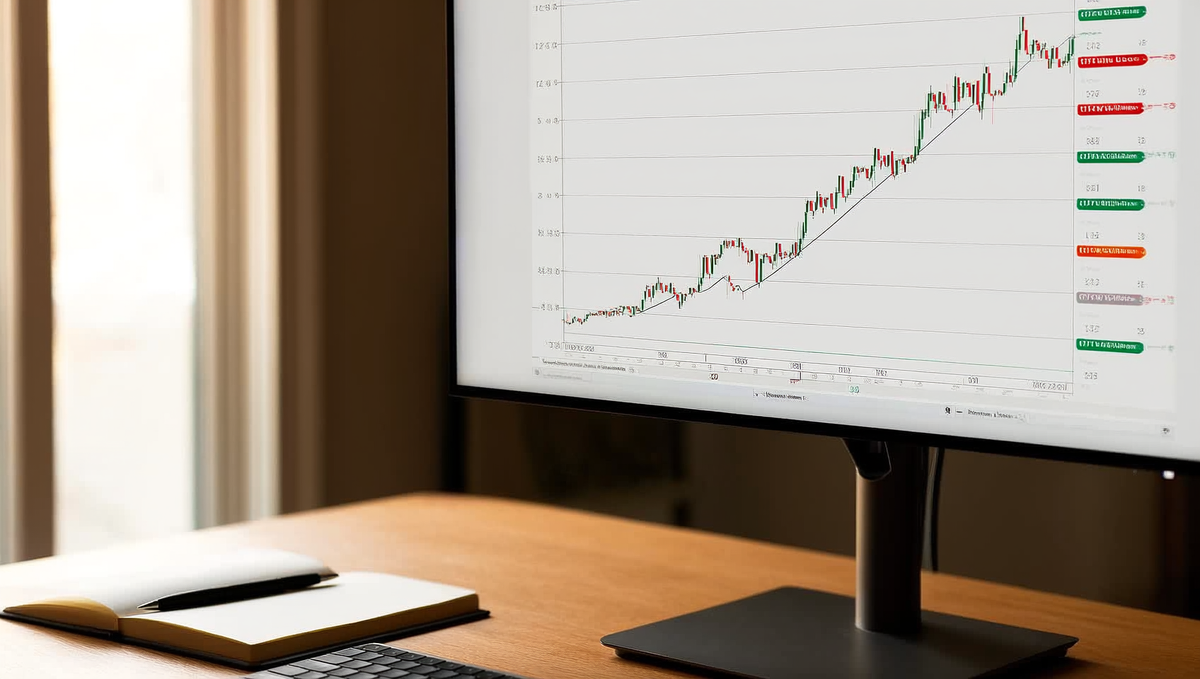
Trailing stop on desktop: right-click → Trailing Stop
In the Trade tab, right-click the position → Trailing Stop → pick a distance (15, 30, 50 points, etc.) or hit Custom to set your own trailing stop distance in points. MT5 checks price on every tick and, once you're in profit by at least that distance, moves the stop to lock it in. There's no dialog confirming it's live — check the Experts tab or the Journal to confirm the trail registered, because a silent failure here is the same as having no stop management at all.
Trailing stop on MT5 mobile
Wondering how to set trailing stop loss in MT5 mobile — the sequence is nearly identical to desktop. Long-press the open position in the Trade tab, tap Trailing Stop, and select your distance from the list. Mobile trailing stops run on the exact same client-side logic as desktop, which means the same caveat below applies with extra force — your phone locking, losing signal on the subway, or the app getting backgrounded by the OS can all freeze the trail mid-trade.
The client-side caveat nobody warns you about
Here's the mechanic that catches people out: MT5's built-in trailing stop is executed by your terminal, not the broker's server. Stop Loss and Take Profit orders sit server-side and fire even if your laptop is off — trailing stops don't. Close MT5, lose your connection, let your battery die, and the trailing stop freezes at whatever level it last reached. Price can then run straight through that phantom level with nothing protecting the trade.
The workaround is simple and non-negotiable: always keep a hard, server-side SL sitting underneath the trail as a floor. Worst case, that fixed stop fires and you take the loss you already planned for — instead of finding out your "trailing stop" was decoration. If you're trailing on a strategy that needs to run unattended, the real fix is running an Expert Advisor on a VPS (MT5 VPS), so the trailing logic executes server-adjacent 24/5 regardless of what your home internet or laptop is doing.
SL vs TP vs trailing stop vs break-even compared
| Tool | What it does | Executes where | Best used when |
|---|---|---|---|
| Stop Loss | Closes trade at a fixed loss level | Broker server (client-side vs server-side — always server) | Every single trade, no exceptions |
| Take Profit | Closes trade at a fixed reward level | Broker server | Set-and-forget targets, fixed R:R plans |
| Trailing Stop | Moves SL behind price at fixed distance | Client (your terminal/EA) | Trending markets, terminal/VPS stays online |
| Break-even | Manual or scripted move of SL to entry | Broker server once modified | After price confirms the trade thesis |
Ready to trade funded capital?
Choose your path — Instant Accounts, One-Step or Two-Step Challenges — from just $23, with up to $300,000 in funded capital.
Choose your challengeHow do you calculate stop loss distance and lot size properly in MT5?
The sequence is always distance first, size second: place your Stop Loss where the trade idea is proven wrong, measure that distance in price, then size the lot so the dollar loss equals your fixed risk per trade — never pick a lot size first and hope the SL fits. Get this order backwards and you're sizing your risk around your ego, not around the chart.
Structure first
Your SL belongs beyond the last swing high or low that defines your setup — not at a distance that "feels comfortable." If you're long off a swing low on XAUUSD, the invalidation level is below that low, full stop. If price trades through it, your read on the market was wrong and you're out. This is the only honest way to answer how to calculate stop loss properly in MT5 — structure decides the level, risk percentage decides the lot.
ATR second
Structure gives you the level; ATR gives you the buffer so a normal wick doesn't tag your stop before the move even starts. A common atr based stop loss approach: place your SL 1.5× the 14-period ATR beyond the swing low, not right on it. On XAUUSD with a 14-period ATR of roughly $9.30, that's a buffer of about $14 beyond structure — enough room for the market's normal noise, not enough to turn a bad entry into a bigger bad entry.
Round numbers never
Never park your SL on a round number — $2,000.00 on gold, 1.1000 on EURUSD, 20,000 on US100. Round numbers attract resting orders and liquidity hunts; the level gets hit first, then price does exactly what you expected two ticks later, without you in the trade. Offset your stop a few pips or a dollar or two past the round number, on the far side of your ATR buffer.
Turning SL distance into lot size at 0.5% and 1% risk
Worked example on a $100,000 simulated account, 1% risk per trade ($1,000): SL distance of $14.00 on XAUUSD, contract size 100oz, means $1,400 loss per standard lot. $1,000 ÷ $1,400 = 0.71 lots — rounded down to 0.70 lots, because rounding up breaks your risk cap. That's position sizing, not guesswork, and it's the same math a lot size calculator runs behind the scenes.
| Instrument | SL distance | Loss per 1.00 lot | Lot size @ 0.5% risk ($500) | Lot size @ 1% risk ($1,000) |
|---|---|---|---|---|
| XAUUSD | $14.00 | $1,400 | 0.35 | 0.70 |
| US100 | 75 pts | $750 | 0.67 | 1.33 |
| EURUSD | 25 pips | $250 | 2.00 | 4.00 |
Checking your maths before you click Buy
Pip value xauusd and per-instrument contract specs aren't identical across brokers, so confirm yours before you size anything: right-click the symbol in Market Watch, open Specification, and check contract size and tick value. Cross-check that number against your risk per trade before every entry — the 30 seconds it takes is cheaper than a lot size error on a $100,000 account.
Why does MT5 say 'Invalid S/L or T/P' and how do you fix it?
MT5 throws "Invalid S/L or T/P" when your stop or target sits closer to current price than the symbol's minimum stop distance, or lands on the wrong side of price entirely. That minimum distance is a broker-set value called SYMBOL_TRADE_STOPS_LEVEL, measured in points, and it's non-negotiable — the server rejects the order before it ever reaches the book.
The minimum stop distance (stops level) explained
Every symbol carries a stops level value that defines how many points away from the current bid/ask your SL and TP must sit. On a major forex pair this might be 0, meaning you can place a stop a single pip away. On XAUUSD or an index CFD during normal hours it's often 50-150 points; during volatile windows it can widen further. This isn't your broker being difficult — it's a buffer so the server can fill your stop without instantly re-triggering slippage disputes. Try to place a stop inside that buffer and MT5 blocks it outright with the invalid S/L or T/P dialog.
The five most common causes, ranked
- SL/TP too close to market — you're inside the minimum stop distance for that symbol right now. This is the single biggest cause of the error.
- Stop on the wrong side of entry — a Stop Loss placed above entry on a long, or below entry on a short (same logic in reverse for Take Profit). MT5 has no way to interpret that as protective, so it rejects it.
- Typing a pip distance into a price field — entering "50" instead of the actual price level. MT5 wants an absolute price, not an offset, and a stray "50" often lands inside the stops level buffer by coincidence, throwing the same error.
- Freeze level during news — a related but distinct mechanism. When freeze level is active, MT5 won't let you modify or delete pending orders/positions at all for that instant, separate from the stops level rejection.
- Decimal error on 2-digit vs 5-digit symbols — mixing up a 2-digit quote (like some indices or JPY pairs) with 5-digit precision on majors. Off-by-one-decimal typos put your level inside the minimum distance without you realizing it.
How to check your symbol's stops level in Specification
- Right-click the symbol in Market Watch.
- Select Specification.
- Find the Stops level row — this is your minimum distance in points.
- Convert points to price using the symbol's tick size, then place your SL/TP beyond that distance from current price.
One practical trap: stops levels aren't static. A distance that worked fine at 09:00 can get rejected at 14:30 when NFP or an FOMC statement drops and the broker widens both stops level and freeze level to manage the volatility spike. If a level you've used all week suddenly throws an error around a high-impact release, check Specification again before assuming your platform is broken — the number itself likely moved.
Hard SL and TP orders vs managing exits manually
Pros
- Server-side SL and TP execute even if your terminal crashes, your Wi-Fi drops or you're asleep through the Asian session
- Levels set before entry are set while you're objective, not while you're watching an unrealised loss grow
- A fixed SL distance lets you calculate lot size precisely and keep every loss the same size
- TP orders capture spikes into your target that you'd never be at the screen to sell into
- Prop evaluations become manageable when no single trade can approach the daily loss limit
Cons / risks
- A hard stop can be wicked out by a news spike that reverses seconds later — sizing and ATR buffers matter
- Stops that sit on obvious round numbers or at the exact swing low are the most likely to be hit first
- A fixed TP caps a runner that could have delivered 5R, which is why partial closes and trailing exist
- MT5's built-in trailing stop is terminal-side and freezes when you close the platform
- Minimum stop distances mean you can't always place the tight stop your setup would ideally use
Ready to trade funded capital?
Choose your path — Instant Accounts, One-Step or Two-Step Challenges — from just $23, with up to $300,000 in funded capital.
Choose your challengeFrequently Asked Questions
What do SL and TP mean in trading?+
SL (stop loss) is the price where your trade closes automatically to cap a loss, and TP (take profit) is the price where it closes automatically to lock in a reward. Both are pending instructions attached to your position, executed by the server even if you're away from the screen. In MT5 they sit as two extra fields on every order ticket. Using both consistently is what separates a defined-risk trade from a guess — you know your worst case and target before you click buy or sell.
How do you set stop loss and take profit in MT5?+
Open the order ticket (F9 or right-click the chart), enter your SL and TP price levels in the dedicated fields, then confirm the trade — MT5 attaches both to the position automatically. On desktop you can also right-click an open position in the Trade tab and choose Modify to add or edit levels after entry. Distances must respect the broker's minimum stop level (in points), or MT5 throws an "Invalid S/L or T/P" error. Always set both before or immediately after entry — never leave a trade unprotected.
How do you set SL and TP on MT5 mobile?+
On MT5 mobile (iOS/Android), tap New Order, enter your volume, then tap the Stop Loss and Take Profit fields to input price levels before tapping Sell/Buy. For an existing position, tap it in the Trade tab, hit Modify, and adjust the levels there. The mobile app enforces the same minimum stop distance as desktop, so a level too close to price gets rejected. It's slower than dragging lines on desktop, so many traders set levels at entry and only fine-tune from mobile.
How do you drag SL/TP lines on the MT5 chart?+
Drag-and-drop only works if two settings are enabled: Tools > Options > Trade tab has "Enable one-click trading" or chart trade lines active, and Chart Properties has "Show trade levels" ticked. With those on, an open position shows horizontal SL and TP lines you can click and drag to a new price directly on the chart. It's the fastest way to adjust levels mid-trade, but double-check the new price against the minimum stop distance — dragging too close to current price snaps back or errors.
How do you set multiple take profits (TP1/TP2/TP3) in MT5?+
MT5 has no native multi-TP field, so traders split the position into two or three separate orders of smaller volume, each with its own TP level. Close a third of the volume at TP1, move the stop to break-even, then let the remainder run to TP2/TP3. Some use partial close manually at each level instead of pre-placing separate trades. It takes more manual management than a single-ticket trade, but it's the standard workaround for scaling out of winners on this platform.
How do you move a stop to break-even in MT5?+
On desktop, right-click the open position, choose Modify, and set the SL field to your entry price (plus a few points to cover spread/commission), then confirm. On mobile, tap the position, hit Modify, and edit the SL the same way. There's no one-click "set BE" button natively, so many traders use an EA or script for it. Moving to break-even after price clears a defined distance (often 1R) removes downside risk on a runner without capping the upside.
How do you calculate stop loss distance and lot size in MT5?+
Stop distance should come from market structure or volatility (e.g., 1.5× ATR beyond a swing point), not a round number, and lot size is then derived by dividing your dollar risk by the stop distance in pips/points times the pip value. MT5's built-in calculator (View > Toolbox > Trade, or the order ticket's risk field on newer builds) can convert this automatically once you enter account risk %. Sizing this way keeps every trade's risk consistent regardless of how wide the stop needs to be that day.
Why does MT5 reject my SL/TP with an 'Invalid' error?+
This error means your stop or target price sits closer to the current price than the broker's minimum stop level (freeze/stop level in points), which is common on fast-moving instruments like gold or indices near news. Fixing it means widening the level slightly or checking the symbol's Freeze Level and Stops Level under Market Watch > Specification. It can also happen if you try to modify a pending order while price is inside the freeze zone right before execution — wait a moment and retry.
How do you set a trailing stop in MT5?+
Right-click the open position, go to Trailing Stop, and pick a preset distance (in points) or a custom value — MT5 then adjusts your SL automatically as price moves in your favor. The key limitation is that trailing stops run client-side, meaning the terminal must stay open and connected for the trail to update; closing MT5 or losing connection freezes the stop at its last level. For unattended trades, an EA or server-side trailing feature (if your broker offers it) is more reliable.
How should SL sizing protect a prop challenge daily loss limit?+
Size each stop so a single loss stays well under half of your daily loss limit — for example, if the daily limit is 5%, cap per-trade risk at 1% or less so two or three bad trades in a row still don't breach it. This buffer matters because slippage, spread widening, or a fast gold candle can push the actual fill beyond your intended SL. Combining conservative per-trade risk with a hard max on trades per day is what keeps a challenge account alive through a losing streak instead of ending it in one session.
Written by
Marcel Hambálek
Senior Trader, For Traders
Marcel trades Futures and Forex day-trading setups on funded accounts and writes about the executional details most traders skip — order types, slippage, session timing, platform quirks on MT5 and NinjaTrader. Pragmatic, mechanics-first, no fluff.
Follow on LinkedInReady to trade funded capital?
Choose your path — Instant Accounts, One-Step or Two-Step Challenges — from just $49, with up to $300,000 in funded capital.
Choose your challengeTrade up to $300,000
Choose challenge