TradingView Download: Install It Properly on PC, Mac, Linux and Mobile
TradingView Desktop download and install for Windows 11, Mac, Linux, iOS and Android — official sources, file sizes, free-tier limits and fixes that work in 2026.
By Marcel Hambálek · Senior Trader, For Traders
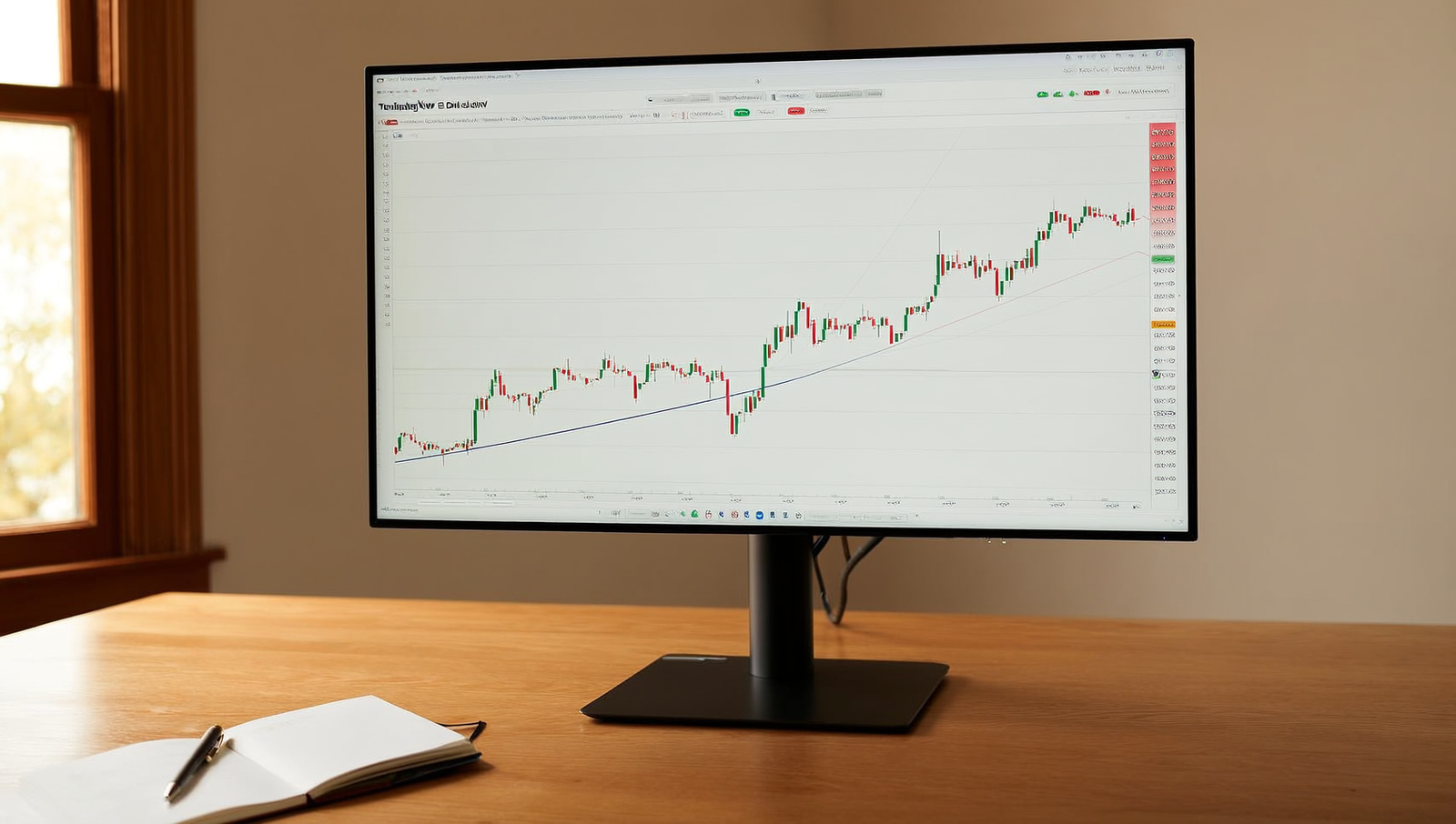
TradingView Desktop is the free native charting app, downloaded only from tradingview.com/desktop, and it runs on Windows 11 and 10 (64-bit .exe), macOS (.dmg, separate Apple Silicon and Intel builds), and Linux (.deb, .rpm, AppImage). The mobile apps come from Google Play and the Apple App Store. The installer costs nothing on every platform — paid plans unlock features, not the download.
Key takeaways
- TradingView Desktop is free to download on all six platforms; subscriptions gate indicators, layouts and alerts, never the installer itself.
- Windows 11 and Windows 10 use the identical 64-bit .exe — there is no separate installer for each version.
- There is no official TradingView APK for PC; every site offering one is either an emulator funnel or a credential-theft risk to your account and connected broker.
- Apple Silicon Macs (M1–M4) need the ARM build; running the Intel build under Rosetta 2 costs you frame rate on tick-dense charts like XAUUSD and US100.
- Your layouts, watchlists, alerts and Pine Scripts live in the cloud, so reinstalling or switching machines costs you nothing but a sign-in.
- TradingView is charting software — not a broker and not a prop firm — so execution always happens through a connected broker or, for an evaluation, on a prop firm's simulated-capital platform.
Watch: related video
What TradingView Desktop actually is (and how it differs from web and mobile)
TradingView Desktop is a native wrapper around the exact same charting engine, the exact same cloud account, and the exact same data feed you already use in your browser — it's not a separate product, and it's definitely not a different data source. Install it and log in, and your layouts, watchlists, and Pine Scripts show up instantly because everything syncs server-side.
The native app vs the browser tab
A browser tab runs inside Chrome or Firefox's sandbox, sharing memory and CPU with every other tab you've got open — and if you're the trader with 40 tabs open during the London/New York overlap, that sandbox is fighting for resources against your email, your Discord, and three YouTube streams. The tradingview desktop app runs as its own OS-level process. Same charts, same alerts, same account — but it isn't competing with your Gmail tab for RAM when NFP drops.
What the desktop build gives you that the tab doesn't
Four things, concretely:
- Multi-monitor detached chart windows — drag a chart off the main window and onto a second or third monitor as its own independent window. Browsers can approximate this with window snapping, but the native app treats each detached chart as a first-class window with its own toolbar and hotkeys.
- Native OS notifications — price alerts and watchlist triggers fire through Windows' or macOS's own notification center, not a browser popup that dies the moment you Alt-Tab away or that Chrome silently suppresses.
- Chart hotkeys the browser intercepts — Ctrl+W closes your chart tab instead of your browser tab, Ctrl+T opens a new symbol search instead of a new browser tab, and F11 goes full-screen on the chart itself, not the browser window. In a browser, all three trigger the OS/browser shortcut first.
- No browser memory tax — no tab-hoarding penalty. The app's memory footprint is dedicated to charts and data, not shared with 40 unrelated tabs.
Desktop vs Web vs Mobile: feature comparison
| Capability | Web (browser tab) | Desktop (native app) | Mobile |
|---|---|---|---|
| Account, layouts, watchlists, Pine Scripts | Synced | Synced | Synced |
| Detached windows across monitors | Limited (browser snapping) | Full multi-monitor support | Not applicable |
| Native OS price alert notifications | Browser-dependent, unreliable when backgrounded | Native, reliable | Native push notifications |
| Chart hotkeys (Ctrl+W, Ctrl+T, F11) | Intercepted by browser | Reserved for the chart | Not applicable |
| Memory footprint under heavy tab use | Shared with all open tabs | Dedicated process | Low, single-app |
Who should actually bother installing it: anyone running more than two charts at once, or anyone who watches alerts fire during the London/New York overlap and needs a notification that doesn't vanish behind fifteen other browser tabs. If you're a one-chart, once-a-day swing trader checking levels on your lunch break, the web tab does the job fine — save the install for when your setup starts fighting your hardware.
Is TradingView Desktop free — and where to download it by platform
Yes — the TradingView Desktop app is free on every platform, no exceptions. Windows, Mac, Linux, iOS, Android: the installer costs nothing. What you pay for is a subscription tier that unlocks more indicators, alerts, and layouts — the download itself is never gated behind a paywall.
What the free tier actually limits in 2026
The free plan isn't the full toolkit, and you should know the caps before you build your workflow around them:
- Indicators per chart: capped at a small handful (2 on the base free plan) — enough for a moving average and an oscillator, not a full confluence stack.
- Saved layouts: one. Switching between a scalping layout and a swing layout means rebuilding, not toggling.
- Alerts: a very limited allowance, which matters if you're the trader we described a moment ago — watching for a breakout during the London/New York overlap and relying on the app firing on time.
- Ads: present in the interface on free accounts, removed on paid tiers.
- Data refresh: some feeds run on delayed or slower update cycles compared to paid real-time data on certain exchanges.
None of this blocks the download or installation — it's the same tradingview desktop binary for free and paid users. The subscription just unlocks what you can do once it's open.
Official download sources, file types and sizes
Only two sources are legitimate: tradingview.com/desktop directly, or the three official app stores (Microsoft Store, Google Play, Apple App Store). Anything else claiming to offer a "trading view free download" — third-party download aggregators, torrent sites, random APK mirrors — is a security risk, not a shortcut.
| Platform | Source | File type | Approx. size | Cost | Key limitation |
|---|---|---|---|---|---|
| Windows 11/10 (64-bit) | tradingview.com/desktop | .exe | ~150–180 MB | Free | Standard installer, admin rights needed for system-wide install |
| Windows (Store build) | Microsoft Store | Store package (.msix) | ~150–180 MB | Free | Auto-updates via Store, sandboxed install path |
| macOS (Apple Silicon) | tradingview.com/desktop | .dmg (ARM build) | ~160–190 MB | Free | Must match chip — wrong build won't run natively |
| macOS (Intel) | tradingview.com/desktop | .dmg (Intel build) | ~160–190 MB | Free | Separate download from the ARM build |
| Linux (Debian/Ubuntu) | tradingview.com/desktop | .deb | ~140–170 MB | Free | Manual dependency handling on older distros |
| Linux (Fedora/RHEL) | tradingview.com/desktop | .rpm | ~140–170 MB | Free | Same core limitations as .deb build |
| Linux (distro-agnostic) | tradingview.com/desktop | AppImage | ~150–180 MB | Free | No install needed, but no auto-update |
| Android | Google Play | APK (via Play) | ~80–100 MB | Free | Reduced screen real estate for multi-chart setups |
| iOS/iPadOS | Apple App Store | IPA (via App Store) | ~90–110 MB | Free | Same alert/indicator caps as free web tier |
| Any OS | Web browser | N/A (browser tab) | N/A | Free | No native notifications, tab competes with other windows |
Last verified: September 2026. File sizes vary by build version — always confirm against the download page before installing.
Why the Microsoft Store build exists
The Microsoft Store version isn't a gimmick — it's there for traders who want auto-updates handled by Windows itself, a sandboxed install (useful on locked-down corporate machines), and one-click reinstall if you switch PCs. If you want direct control over version timing, the standalone .exe from tradingview.com/desktop is the better tradingview download for pc. If you'd rather Windows manage it quietly in the background, the Store build does that job.
How to download and install TradingView Desktop on Windows 11 and Windows 10
Go to tradingview.com/desktop, click the download button the site shows you, run the .exe, and sign in with your TradingView account — that's the entire tradingview download windows process, and it's identical whether you're on Windows 11 or Windows 10. There's no separate build for each version. Both run the same Windows 11 and Windows 10 64-bit .exe, and if your machine is still on a 32-bit install of Windows (rare at this point), TradingView Desktop won't install at all — 32-bit support was dropped, so check your system type under Settings > System > About before you troubleshoot anything else.
Step-by-step: the 64-bit .exe installer
- Open a browser and navigate to tradingview.com/desktop. The site auto-detects you're on Windows and surfaces the correct download button — you don't need to hunt for a dropdown or pick an architecture.
- Click Download. The file lands in your Downloads folder as something like tradingview-setup.exe, typically 100-150MB.
- Double-click the .exe to run it. If a User Account Control prompt appears, click Yes — the installer needs permission to write to Program Files.
- Accept the default install path (or change it if you manage drives manually) and click Install.
- Once it finishes, launch the app and sign in with your existing TradingView credentials. Your saved layouts, watchlists and alerts sync automatically — nothing to re-build.
Installing from the Microsoft Store on an IT-locked laptop
If your work laptop blocks .exe installers or you don't have local admin rights, search "TradingView" in the Microsoft Store instead. This Microsoft Store build installs into a sandboxed user profile, so it doesn't need elevated permissions — the workaround most traders on corporate machines end up using. The trade-off: updates come through the Store's own update cycle, not through an in-app prompt like the standalone .exe, so you may lag a version or two behind if your Store hasn't synced recently. Functionally the charting engine is the same; it's purely a distribution and permissions difference.
SmartScreen warnings and where the app installs
The first time you run the .exe, Windows SmartScreen may flag it as an "unrecognised app" — this is standard for newly-signed or less-common installers, not a sign of a bad file, as long as you downloaded it from tradingview.com/desktop and not a mirror or ad link. Click More info, confirm the publisher shows as TradingView Inc, then click Run anyway. If the publisher field is blank or shows something unrelated, stop and re-download from the official site — that's the actual red flag. Once installed, the standalone build lives in C:\Users\[yourname]\AppData\Local\TradingView by default, while the Store version installs under C:\Program Files\WindowsApps and is managed entirely by Windows. Either way, once you're through SmartScreen and signed in, tradingview for pc behaves identically to the browser version — same charts, same order panel — just running natively instead of in a tab.
How to install TradingView on Mac (Apple Silicon vs Intel)
Grab the tradingview mac download from tradingview.com/desktop, pick the right build for your chip, and you'll be charting in under two minutes. The whole process is drag-and-drop — Apple made this easy, TradingView didn't complicate it.
Step-by-step: downloading and mounting the .dmg
- Go to tradingview.com/desktop and download the macOS .dmg — the site auto-detects Apple Silicon vs Intel, but confirm it (details below) before you double-click.
- Open the downloaded file. macOS mounts it as a virtual disk and pops open a Finder window showing the TradingView icon next to a shortcut to your Applications folder.
- Drag the TradingView icon onto the Applications shortcut. That's the entire install — no wizard, no license agreement screen.
- Eject the disk image (right-click it on the desktop or in Finder's sidebar and choose Eject). It's just the mounted installer, not the app itself — skipping this step won't break anything, it just leaves clutter.
- Launch TradingView from Applications or Spotlight, sign in with your account, and your layouts, watchlists, and alerts sync down from the cloud immediately.
Which build for M1–M4 — and what Rosetta 2 costs you
Check your chip before you download: Apple menu → About This Mac. If it lists "Apple M1," "M2," "M3," or "M4," you're on Apple Silicon M1–M4 — take the Apple Silicon build. If it says "Intel," you're on the Intel build, which realistically means any Mac bought before late 2020.
The Intel .dmg will technically install and run on an M-series Mac too — macOS translates it on the fly through Rosetta 2. But you pay for that translation layer in dropped frames and shorter battery runway, and it shows up exactly where you don't want it: scrolling through tick-dense gold or index charts during a fast session. Native Apple Silicon rendering keeps chart redraws smooth when XAUUSD is whipping around NFP or FOMC; the emulated Intel build noticeably lags on the same tick data. If you're evaluating on a Two-Step Challenge and reacting to price in real time, that lag is a real edge lost for no reason — grab the correct build the first time.
Gatekeeper, permissions and notifications
On first launch, macOS's Gatekeeper may flag the app as downloaded from the internet and ask you to confirm you want to open it — this is standard for any app outside the App Store, not a red flag on TradingView itself. Click Open and it won't ask again.
Next, head to System Settings → Notifications → TradingView and turn alerts on explicitly. macOS ships with notifications for new apps set conservatively, and if you skip this step your price alerts fire silently in the app but never reach your Mac's notification centre or lock screen — which defeats the point of setting them while you're away from the desk.
How to install TradingView on Linux (.deb, .rpm and AppImage)
Grab the right package for your distro from tradingview.com/desktop, then install it from the terminal — dpkg for Debian/Ubuntu, dnf for Fedora/RHEL/openSUSE, or just chmod +x and run the AppImage if you want zero system integration. None of these ship through your distro's repos, so apt upgrade or dnf update will never touch TradingView — that's on you or the in-app updater.
Debian and Ubuntu: dpkg and apt
Download the .deb, then install it directly with dpkg:
- sudo dpkg -i tradingview.deb
- If it complains about missing dependencies, run sudo apt-get install -f to pull them in and finish the install
That two-command sequence is the whole job. dpkg alone often stops halfway with a dependency error — the apt-get install -f pass resolves it and completes the configure step. This works identically on Ubuntu, Debian, Mint, Pop!_OS and most Debian derivatives.
Fedora, RHEL and openSUSE: rpm and dnf
Download the .rpm and let dnf handle dependency resolution rather than calling rpm directly:
- sudo dnf install ./tradingview.rpm
The ./ before the filename matters — dnf needs to know you're pointing at a local file, not a repo package name. On openSUSE swap in sudo zypper install tradingview.rpm. Either way you get proper dependency handling instead of the "failed dependencies" wall rpm alone throws up.
AppImage: chmod, desktop entry and updates
The AppImage is the portable option — no install, no root needed, runs on basically any modern distro including Arch and immutable setups like Fedora Silverblue:
- Download TradingView.AppImage
- chmod +x TradingView.AppImage
- ./TradingView.AppImage
It launches straight from that command with no desktop icon, no menu entry, no file associations. If you want it to behave like a normal installed app, install AppImageLauncher — it registers the AppImage, adds it to your app menu, and offers to move it to ~/Applications on first run. Without it you're double-clicking a file in your Downloads folder every session.
One thing that trips up traders coming from Windows: apt upgrade or dnf update will never touch TradingView, .deb, .rpm, or the AppImage — it's not in any repository, so your package manager doesn't know it exists. Updates come from re-downloading the installer at tradingview.com/desktop or letting the app's own built-in updater handle it on launch. Check the version number in Settings periodically if you're not getting update prompts.
If you ever need a clean reinstall — corrupted layout, broken indicator scripts, chart templates gone sideways — the config lives at ~/.config/TradingView. Close the app, delete that directory, relaunch, and you're back to a fresh profile with your account synced from the cloud (your saved charts and layouts live on TradingView's servers, not locally, so you won't lose anything by nuking the local config).
How to get the official TradingView app on Android and iOS
The tradingview app download comes from exactly two places: the Google Play Store on Android, the Apple App Store on iOS. That's it. Search "TradingView" in either store, confirm the publisher is TradingView, Inc., and install. Anything else — APK mirrors, "modded" versions promising unlocked indicators, sideloaded files from a forum post — skip it entirely. You're handing a random third party your login and, on a funded account, that's account credentials tied to real evaluation progress. Not worth the risk to save one tap.
Installing from Google Play and the Apple App Store
On Android, open the Google Play Store, search TradingView, hit install, sign in with your existing account (same login as desktop — everything's synced through TradingView's cloud, not stored locally). On iOS, same process through the Apple App Store. Both apps are free downloads regardless of your subscription tier, same as desktop — you're not paying to install, you're paying (if at all) to unlock chart features once you're in.
What's capped on the phone app
The mobile app is genuinely good at a few things: managing price alerts, triaging your watchlist over coffee, glancing at a chart between sessions to see if your bias still holds. That's real utility, not a consolation prize.
But there are hard tradingview mobile app limits that don't go away no matter your plan:
- Drawing precision — placing a Fib retracement or a trendline accurately with a thumb on a 6-inch screen is nowhere near desktop's mouse precision.
- Multi-chart layouts — no side-by-side four-pane setup watching correlated pairs or XAUUSD against DXY at once.
- Pine Script editing — you can view a script's output, but writing or debugging code on a phone keyboard isn't happening.
- Hotkeys — no keyboard shortcuts for order entry, drawing tools, or timeframe switching. Everything's a menu tap, and menu taps cost time.
Why phone-only is a bad idea mid-evaluation
Here's the honest version: managing a live XAUUSD position from your phone on mobile data during NFP is how stops get fat-fingered or fills get missed entirely. Gold can move 200+ pips in the minutes around a hot jobs number, and a laggy connection plus a small touchscreen is a bad combination when you need to adjust a stop or scale out fast. That kind of slippage on a real fill doesn't care whether you meant to tap "modify" or "close" — the order goes through as tapped.
Treat mobile as your alert receiver, not your cockpit. Let it ping you when price hits a level, then get to a desk. If you're running a challenge with a daily loss limit, the last thing you want is a mistimed thumb-tap turning a manageable drawdown into a breach. Desktop is where you execute; phone is where you get told it's time to look.
Ready to trade funded capital?
Choose your path — Instant Accounts, One-Step or Two-Step Challenges — from just $23, with up to $300,000 in funded capital.
Choose your challengeWhy there is no TradingView APK for PC — and why those downloads are dangerous
TradingView does not publish an APK, period — and even if it did, an APK cannot run on Windows or macOS natively. APK is an Android package format; your desktop OS has no idea what to do with it. If you're searching "tradingview apk for pc" hoping for a shortcut, the shortcut is actually behind you — the free native .exe from tradingview.com/desktop installs faster than most of the sites you're about to click through.
The APK-for-PC search results explained
Type "trading view apk download for pc" and you'll get a page of results that look official but aren't. Most fall into two buckets: emulator affiliate farms trying to funnel you toward a download-and-install bundle they get paid for, or outright malware distribution sites repackaging the real Android APK with something extra stitched in. Neither is TradingView. The real desktop app has no APK variant to leak, mirror, or "unlock" — there's nothing to download except the installer that's already sitting one click away on the official site.
Android emulators: BlueStacks, NoxPlayer and what you give up
Technically, yes — you can run the Android build on a PC through an emulator like BlueStacks or NoxPlayer. That's what these emulators exist for. But you're not gaining anything; you're trading down. You get the mobile chart layout stretched across a monitor, no hotkeys, no multi-monitor workspace, and an emulator layer eating several gigs of RAM just to simulate a phone your PC doesn't need to pretend to be. Meanwhile the native desktop app — the actual product built for this screen size — is free, lighter, and sitting in the same download folder you were about to put the emulator installer in. There's no version of this trade-off where the emulator route wins.
Your login is a key to your connected broker
Here's the part that matters more than performance. Your TradingView account isn't just chart preferences — it can be linked to a live broker connection for order routing. A repackaged APK from an unofficial source is a classic vector for credential theft: it looks and functions like the real app while quietly logging what you type or intercepting session tokens. Hand over that login and you're not just exposing a watchlist — you're potentially handing someone execution access on a connected account. This is APK sideloading risk in its plainest form: you bypass every check the Play Store runs, and you eat whatever's inside the package.
Android's built-in Google Play Protect scans apps installed through the Play Store and flags known bad APKs on sideload — which is exactly why these sites tell you to disable it or "allow unknown sources" first. Treat that instruction as the red flag it is. If you've already sideloaded one of these files: uninstall it immediately, run a full device scan, change your TradingView password from a clean device, revoke any active sessions in your account security settings, and check your connected broker for unrecognized orders or API keys you didn't generate.
System requirements: running tick-dense charts without lag
TradingView desktop runs fine on a 5-year-old laptop with 8GB RAM for a couple of charts, but a six-chart workspace watching XAUUSD on the 1-minute alongside US100 futures during the open needs 16GB and a dedicated GPU, or you'll feel every tick as a stutter. The installer itself is tiny — around 300MB on disk across Windows, Mac and Linux — so the app isn't the resource hog. What eats your machine is what you load into it.
| Use case | RAM | CPU | Disk | GPU |
|---|---|---|---|---|
| 1-2 charts, swing trading | 8GB | Dual-core, any recent chip | ~300MB + cache | Integrated is fine |
| 6-chart workspace, day trading | 16GB | Quad-core (i5/Ryzen 5 or better) | ~300MB + cache | Dedicated recommended |
| Multi-monitor, tick-dense futures/gold | 32GB | 6-core+ (i7/Ryzen 7) | ~300MB + cache | Dedicated GPU required |
RAM, CPU and disk by use case
Disk footprint barely changes between profiles — TradingView desktop stays around 300MB regardless of how you trade. RAM is where the profiles split hard. A trader running one or two charts with a handful of indicators sits comfortably at 8GB total system RAM. Push to six charts covering multiple asset classes and you want 16GB, because each chart holds its own tick buffer, indicator overlays, and drawing objects in memory simultaneously.
GPU acceleration and multi-monitor setups
Here's what surprises traders coming from other platforms: CPU speed matters less than GPU acceleration for chart rendering. TradingView renders candles, volume profiles and indicator overlays through your graphics card, not your processor. Scroll back through months of 1-minute XAUUSD history and you're asking the GPU to redraw thousands of candles per frame — an integrated graphics chip from a budget laptop will visibly lag on that scroll, even if the CPU sits idle. Spread that across three or four monitors and the GPU load multiplies per display. A dedicated card with at least 4GB VRAM is the realistic floor for serious multi-monitor setups.
What actually causes chart stutter on gold and index futures
Chart lag rarely comes from having "too many charts" — it comes from indicator count and Bar Replay mode. Every custom indicator recalculates on every tick, and on a fast-moving instrument like a US100 / NSDQ futures ladder during the cash open, that's thousands of recalculations a minute per indicator. Stack eight indicators across six charts and you've built a bottleneck that has nothing to do with chart count. Bar Replay is worse — it loads the full historical tick dataset into memory to simulate playback, which is why replay sessions on gold's high-volatility windows can double your RAM usage compared to live charting.
If you're on an older laptop, trim in this order: cut indicators per chart to three or fewer, avoid running Bar Replay and live charts simultaneously, close unused chart tabs instead of minimizing them, and disable any indicator with a lookback period longer than you actually trade.
Troubleshooting: won't launch, blank chart, stutter and sign-in loops
Most TradingView desktop problems fall into four buckets — the app won't open, the chart loads white, scrolling stutters, or you're stuck signing in on repeat. Each one has a specific fix, not a generic "reinstall and pray."
App won't open or opens behind the login window
Direct answer: kill leftover TradingView processes first, then relaunch — don't reinstall yet. If tradingview desktop not opening is your issue, a previous session usually didn't close cleanly and a background process is holding the port. On Windows, open Task Manager (Ctrl+Shift+Esc), find every entry named "TradingView," end each one, then relaunch as the same user account you installed under — running as a different user or via "Run as administrator" when the original install wasn't elevated causes the exact behind-the-login-window bug. On Mac, open Activity Monitor, search "TradingView," force quit any lingering process, then relaunch from Applications. If it opens but sits invisibly behind other windows, right-click the dock/taskbar icon and choose "Show all windows" — it's a known focus bug, not a crash.
Blank or white chart window
A blank chart almost always means the data socket got blocked or the local cache is corrupted — not a broken install. First check your network: VPNs and corporate proxies frequently block the WebSocket connection TradingView desktop uses for live data, even though the app itself loads fine. Disable the VPN or add an exception for tradingview.com, then reload. If that's not it, clear the app cache directory — on Windows it's under %AppData%\TradingView, on Mac under ~/Library/Application Support/TradingView — close the app fully, delete the cache folder (not the whole install), and relaunch. This forces a fresh chart render without touching your saved layouts or watchlists, which live in your cloud account, not locally.
Scroll stutter — turn GPU acceleration on (or off)
GPU acceleration stutter cuts both ways: toggling it fixes most cases, either on or off depending on your hardware. Go to Settings → General and find hardware acceleration. If scrolling and zooming feel laggy on integrated graphics (common on older laptops), turn GPU acceleration off — it forces software rendering, which is often smoother on weak chips. If you've got a dedicated GPU and it's still stuttering, the acceleration is probably on but your driver is outdated — update the GPU driver from NVIDIA, AMD, or Intel directly, not through Windows Update, then re-enable acceleration and restart the app.
Stuck on an old build or caught in a sign-in loop
For tradingview not updating, use the manual check first; for a sign-in loop, clear cached sessions everywhere. Go to Help → Check for updates inside the app to force the manual path — auto-update can silently stall behind a firewall. If it's been failing for more than one version cycle, a clean reinstall (uninstall, delete the cache folder, download fresh from tradingview.com/desktop) is faster than debugging a broken updater. For a sign-in loop, don't just retry the password — go to tradingview.com on the web, open Profile → Sessions, and sign out of all devices. Clear cache, quit the desktop app completely, relaunch, and sign in once. That resets the token exchange that loops when a stale session collides with a new one.
TradingView Desktop vs the browser: is the native app worth installing?
Pros
- Detached chart windows you can throw across two or three monitors without a browser frame eating screen space
- Native OS alerts that fire even when the app is minimised — no missed pullback because a tab was asleep
- Hotkeys the browser normally steals (Ctrl+W, Ctrl+T, F11) go to the chart instead of closing your workspace
- Lower memory pressure than a browser session juggling 30 other tabs
- Identical account, layouts, indicators and Pine Scripts — nothing to migrate
Cons / risks
- No exclusive data or indicators: the charting engine is the same as the web version
- Another app to keep updated, and Linux builds sit outside your package manager
- Free-tier caps on indicators, saved layouts and alerts apply exactly as they do on the web
- Needs install rights, which some corporate laptops block (the Microsoft Store build is the workaround)
- Still not an execution venue — you need a connected broker or a separate challenge platform to place orders
Ready to trade funded capital?
Choose your path — Instant Accounts, One-Step or Two-Step Challenges — from just $23, with up to $300,000 in funded capital.
Choose your challengeFrequently Asked Questions
Is TradingView Desktop free to download and use?+
TradingView Desktop itself costs nothing to download — it's a wrapper around your existing TradingView account, not a separate paid product. The free tier caps you at one chart per layout, limited indicators per chart, and no more than a couple of price alerts active at once. Multi-chart layouts, extra indicators, and higher alert limits sit behind paid plans. For a trader running gold and US100 side by side with several indicators on each, the free tier gets cramped fast — that's the practical limit, not the download itself.
What is TradingView Desktop and how is it different from the browser?+
TradingView Desktop is a native app for Windows, Mac, and Linux that mirrors your browser charts but runs outside Chrome or Edge, so it doesn't compete with your other browser tabs for memory and rendering. Charts, layouts, alerts, and watchlists sync through your TradingView account either way — nothing is desktop-exclusive in terms of data. The real difference is stability under load: multiple tick-dense charts (think XAUUSD and NSDQ futures together) render smoother and crash less in the dedicated app than in a browser tab fighting for resources.
How do I install TradingView on Windows 11 and Windows 10?+
Download the installer from TradingView's official desktop page and run the single .exe — it detects your Windows version automatically, so there's no separate build for Windows 10 versus Windows 11. Alternatively, install it through the Microsoft Store, which handles updates automatically and is a safer option on locked-down work laptops where sideloading .exe files is blocked. Both routes log in with your existing TradingView credentials and pull your saved layouts instantly. Avoid installers from anywhere other than tradingview.com or the Store — that's where fake downloads circulate.
How do I install TradingView Desktop on Mac?+
Download the .dmg from TradingView's official site — it auto-selects Apple Silicon (M1/M2/M3) or Intel builds based on your Mac's chip, so you don't need to pick manually. Drag the app into Applications, then approve it in System Settings > Privacy & Security if macOS flags it as an unidentified developer on first launch. Apple Silicon Macs run noticeably smoother with multiple tick-dense charts open than older Intel machines. If charts lag after install, check Activity Monitor to confirm the app is running natively (Apple) and not under Rosetta translation.
How do I install TradingView on Linux and keep it updated?+
TradingView Desktop for Linux ships as a .deb (Debian/Ubuntu), .rpm (Fedora/RHEL), or AppImage — pick the format matching your distro, or use the AppImage for a portable install with no package manager dependency. Unlike the Windows Store version, Linux builds don't always auto-update, so check TradingView's download page periodically or re-download the AppImage when you notice a new version. If charts fail to render on Linux, it's usually a missing GPU driver or a sandboxing issue with the AppImage — running it with `--no-sandbox` is a common fix.
Is there a legitimate TradingView APK download for PC?+
No official TradingView APK exists for PC — the APK is an Android package format that doesn't run natively on Windows or Mac, and any site offering a 'TradingView APK download for PC' is either bundling an Android emulator or distributing malware. Use the real desktop installer (.exe, .dmg, .deb/.rpm/AppImage) from tradingview.com instead. If you specifically want the Android app on a PC, install it through a trusted emulator like BlueStacks and download TradingView from Google Play inside it — not from a random APK file.
What's capped on the TradingView mobile app versus desktop?+
The official TradingView app on Android and iOS carries the same account limits as the browser and desktop — chart count, indicators, and alerts scale with your subscription tier, not the device. What's genuinely capped on mobile is screen real estate: running two or three tick-dense instruments like gold and US100 futures side by side is workable on a monitor but cramped on a phone. Mobile is solid for monitoring open positions and catching alerts on the go, weaker as your primary analysis screen during active session hours.
Can I place trades directly from TradingView charts?+
Yes in the sense that TradingView supports broker integrations for order execution, but placing a trade from a chart still routes through a connected broker account — TradingView itself isn't a broker. For prop firm evaluations, whether charting on TradingView counts depends entirely on the firm: some accept TradingView as an analysis tool alongside their own execution platform, others require trading through their proprietary platform for the challenge to register. Check your specific challenge rules before assuming chart-side execution satisfies evaluation requirements.
Why won't TradingView Desktop launch or show charts?+
The most common cause is a stale local cache or an outdated app version conflicting with server-side updates — TradingView pushes changes frequently, and the desktop app doesn't always catch up cleanly. Fully close the app (check Task Manager or Activity Monitor, not just the window), clear the app's cache folder, and reinstall the latest version rather than patching over an old one. On Windows, corporate antivirus sometimes blocks the app's network calls silently — whitelisting tradingview.com in your firewall settings resolves that in most stuck-on-loading cases.
How do I update or uninstall TradingView Desktop without losing layouts?+
Your layouts, watchlists, and alerts live on your TradingView account in the cloud, not on your local machine, so updating or uninstalling the desktop app never touches them — log back in after reinstalling and everything reappears. To update, just download the latest installer and run it over the existing app (Windows/Mac) or grab the new AppImage/package (Linux); the Microsoft Store version updates itself. To fully uninstall, remove it like any other app through Settings or Applications — no manual cleanup of saved chart data is needed.
Written by
Marcel Hambálek
Senior Trader, For Traders
Marcel trades Futures and Forex day-trading setups on funded accounts and writes about the executional details most traders skip — order types, slippage, session timing, platform quirks on MT5 and NinjaTrader. Pragmatic, mechanics-first, no fluff.
Follow on LinkedInReady to trade funded capital?
Choose your path — Instant Accounts, One-Step or Two-Step Challenges — from just $49, with up to $300,000 in funded capital.
Choose your challengeRelated Blog Posts
Trade up to $300,000
Choose challenge